52
RT-N10U Chapter 5: Using the Utilities
Firmware Restoration
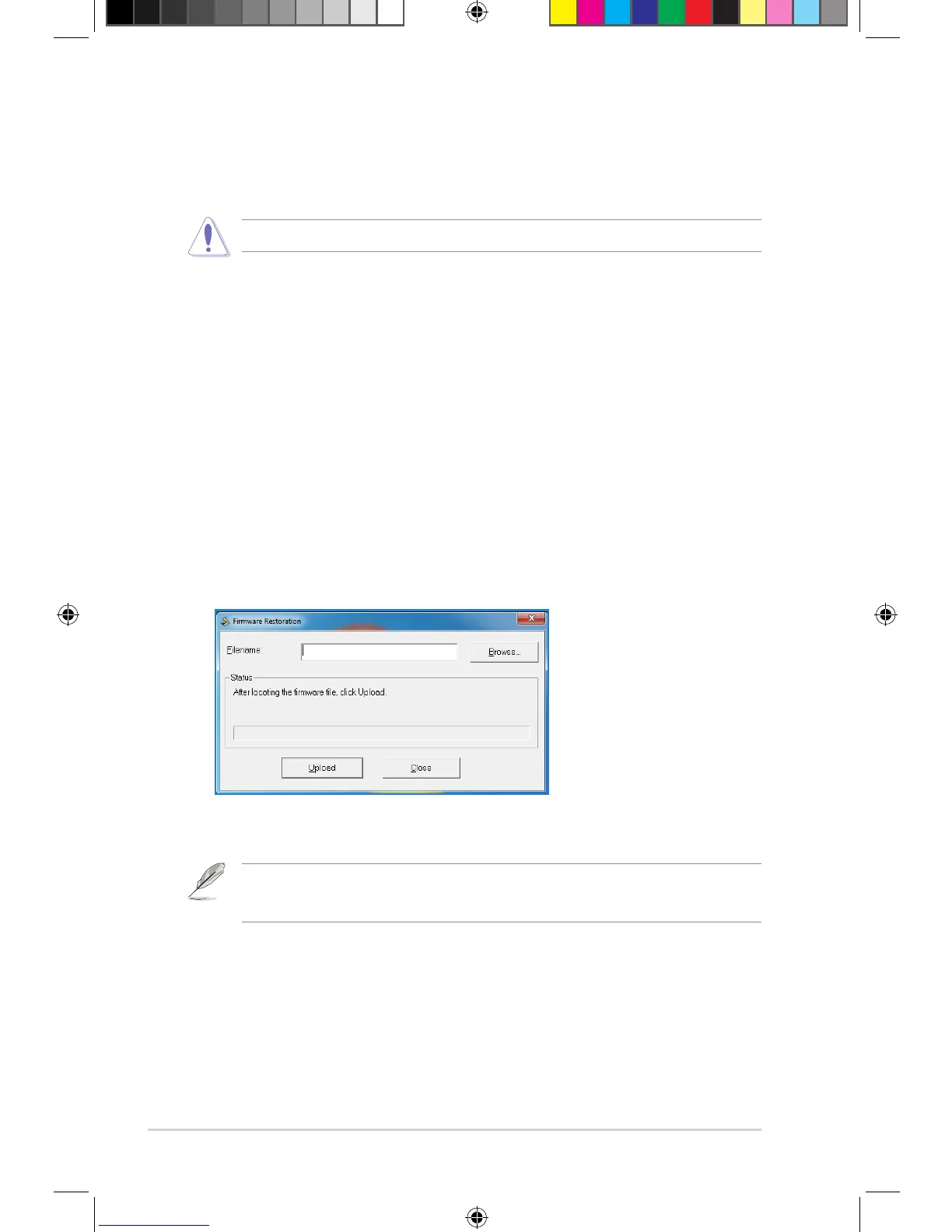
Firmware Restoration is used on an ASUS Wireless Router after a failed firmware
upgrade. This utility uploads a firmware file to the wireless router. The process takes
about three to four minutes.
To launch rescue mode and use the Firmware Restoration utility:
1. Unplug the wireless router from its power source.
2. While holding down the Reset button at the back of the wireless router, plug the
wireless router into a power source. Release the Reset button when the Power
LED at the front panel begins to ash slowly, which indicates that the wireless
router is in rescue mode.
3. Use the following to set up your TCP/IP settings:
IP address: 192.168.1.x
Subnet mask: 255.255.255.0
4. From your computer’s desktop, click
Start > All Programs > ASUS Utility RT-N10U Wireless Router > Firmware
Restoration.
Launch rescue mode before using the Firmware Restoration utility.
The Firmware Restoration utility is not used to upgrade the rmware of a working ASUS Wireless
Router. Normal rmware upgrades must be done through the web GUI. Refer to Upgrading the
rmware on page 44 for more details.
5. Click Browse to navigate to a rmware le, then click Upload.
7656_rtn10u.indd 52 8/23/12 10:06:04 AM



 To Next Page