Chapter 11. System Management RX3141 User’s Manual
76
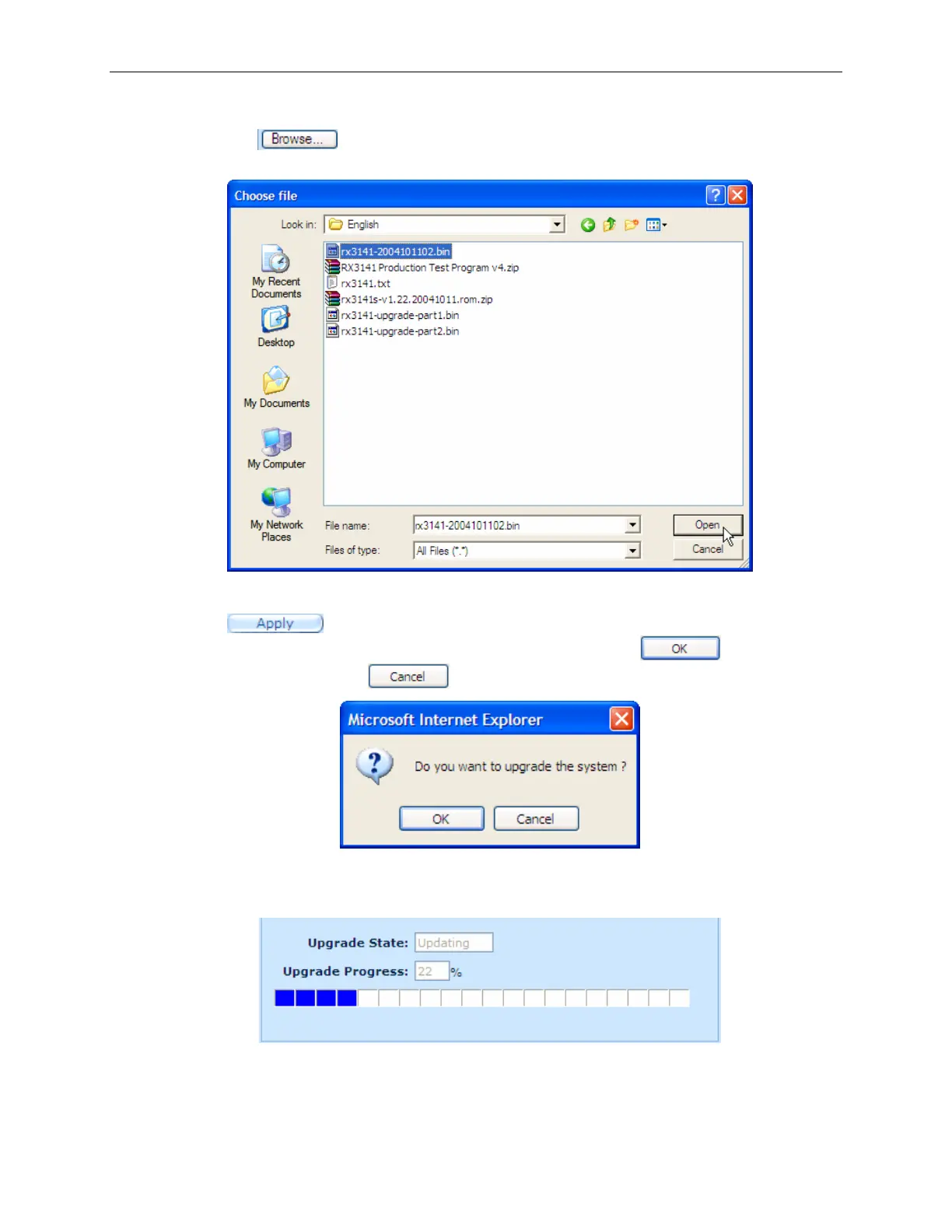
2. In the Firmware text box, enter the path and name of the firmware image file. Alternatively, you
may click on
button to open a file manager to search for the firmware image on your
computer.
Figure 11.8. File Manager
3. Click on
button to update the firmware. A dialog window, such as the one below,
will pop up to ask for confirmation of the firmware upgrade. Click the
button to
proceed; otherwise, click the
button to cancel the action.
Figure 11.9. Firmware Upgrade Confirmation
4. Firmware upgrade status and progress will be shown as illustrated in .
Figure 11.10. Firmware Upgrade Status


 To Next Page