EasyManua.ls Logo

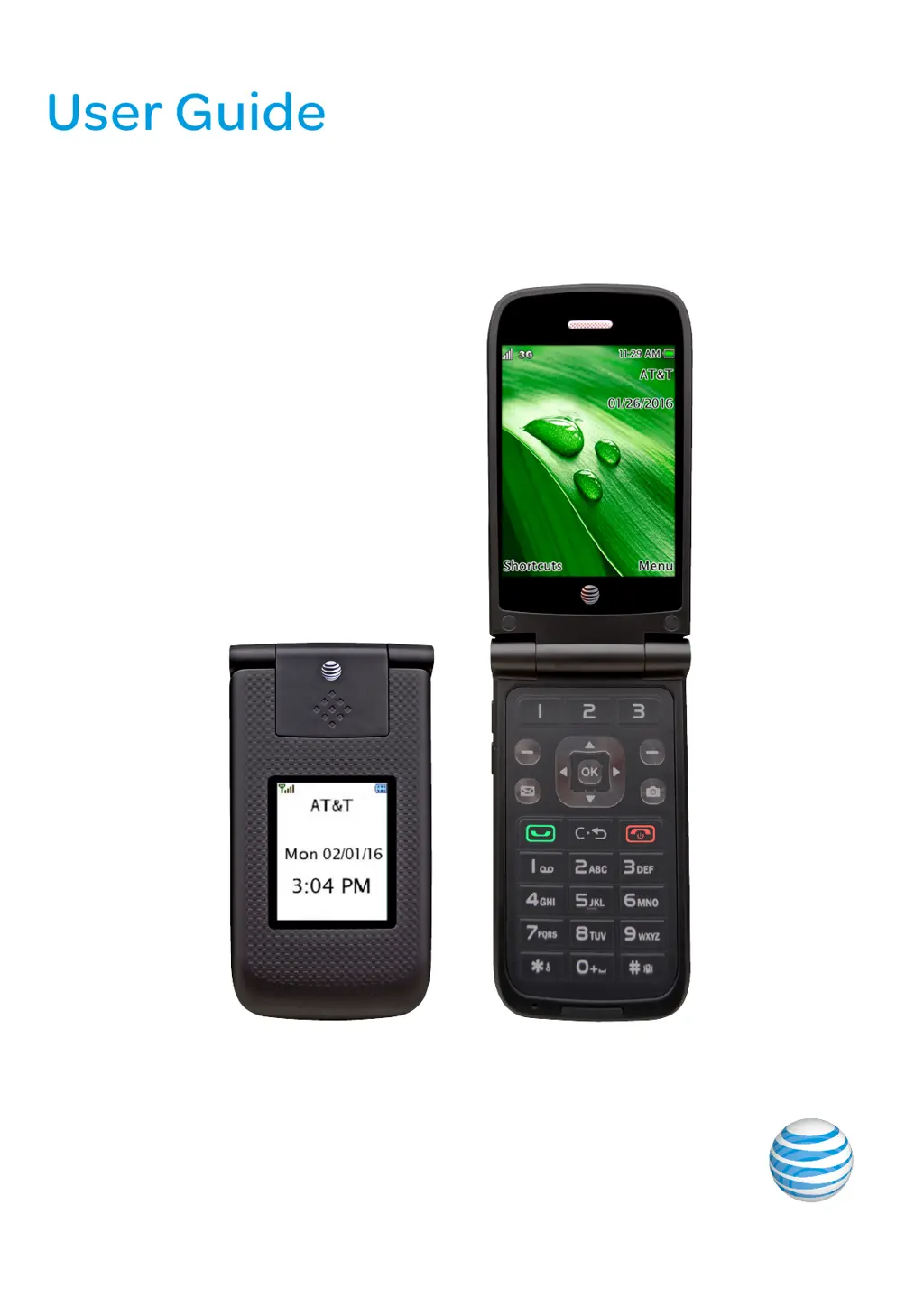
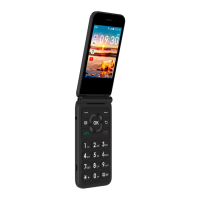
AT&T Cingular Flip - User Manual

AT&T Cingular Flip
26 pages
Print Icon
To Next Page IconTo Next Page
Loading...
AT&T Cingular Flip
User Guide

Table of Contents

Questions and Answers

  • N
    npayneAug 13, 2025
    What to do if the battery won’t charge on my AT&T Cingular Flip?
    • S
      Stephanie WelchAug 13, 2025
      If your AT&T Cell Phone battery isn't charging, first ensure the battery is correctly inserted and the charger is securely connected. Only charge the battery in temperatures between -10°C and 55°C. If the problem persists, the battery or charger may need replacing.
  • A
    Andrew MaddoxAug 17, 2025
    How to fix AT&T Cell Phone when it can’t switch on?
    • L
      Latasha Wolf MDAug 17, 2025
      If your AT&T Cell Phone won't switch on, try pressing and holding the Power/End Key until the display lights up. Also, check the battery contacts by removing and re-inserting the battery. Then, try switching your phone on again. Finally, ensure the battery has sufficient charge.
  • S
    staylorAug 20, 2025
    What to do if my AT&T Cingular Flip can’t connect to network?
    • A
      adam46Aug 21, 2025
      If your AT&T Cell Phone can't connect to the network, first move to an area with better coverage. If the issue continues, contact your service provider to check if your SIM card is valid.
  • K
    kfarleyAug 25, 2025
    Why is the standby time too short on my AT&T Cell Phone?
    • J
      jonathanrobinsonAug 25, 2025
      If the standby time of your AT&T Cell Phone is too short, it might be due to the phone constantly searching for a network signal. Move to an area with stronger signal strength or switch your phone off temporarily. Replacing the battery may also help.
  • D
    Dylan MendozaAug 28, 2025
    What to do if the audio quality of the call is poor on AT&T Cingular Flip?
    • E
      Emily WarnerAug 28, 2025
      If the audio quality during calls on your AT&T Cell Phone is poor, try these steps: 1. Press the Volume Keys to increase the volume. 2. Check the signal strength indicator on the display. Also, the line may be busy, or there may be a network issue preventing a clear connection.
  • M
    Melissa GreerSep 1, 2025
    How to fix SIM card error on AT&T Cingular Flip Cell Phone?
    • B
      Brian MunozSep 1, 2025
      If your AT&T Cell Phone displays a SIM card error, ensure the SIM card's contacts are not damaged; clean it gently with a cloth. Also, verify that the SIM card is inserted correctly. If problems persist, contact your service provider.
  • R
    ronald31Sep 5, 2025
    What to do if I cannot dial calls on my AT&T Cell Phone?
    • B
      Brandi BrownSep 5, 2025
      If you cannot dial calls on your AT&T Cell Phone, first ensure that the number you dialed is correct and that you have pressed the dial key. Also, verify that your SIM card is valid.
  • D
    Danny AndrewsSep 8, 2025
    Why can’t I set some functions on my AT&T Cingular Flip Cell Phone?
    • J
      Joel ClarkSep 9, 2025
      If you can’t set some functions on your AT&T Cell Phone, the operation might be incorrect, or the network provider may not support the function, or you cannot apply the function.

Summary

Getting Started

Installing the Battery

Instructions for inserting the phone's battery.

Charging the Battery

Steps for charging the phone's battery.

Inserting the SIM Card

Guide to inserting the SIM card into the phone.

Entering Text

Making and Receiving Calls

Making a Call

Steps to initiate a phone call.

Using the Address Book

Accessing and using contacts from the address book.

Answering a Call

How to answer or reject incoming calls.

Address Book Management

Contact List

Managing and viewing phone contacts.

Messaging Features

Create New Message

Instructions for composing and sending messages.

Web Browsing

Clock Functions

Alarm Settings

Setting and managing alarms with various options.

Phone Settings

Device Settings

Adjusting phone parameters like date, time, and language.

Call Settings

Managing call forwarding, auto redial, and answer modes.

Connections

Managing phone connectivity options like Bluetooth and USB.

Software Update

Checking for and installing phone software updates.

Camera Operation

Taking Pictures and Videos

Taking pictures and recording videos with the phone.

Safety and General Information

Important Safety Precautions

Critical warnings for safe phone operation.

Phone Precautions

Warnings related to phone handling and potential interference.

Battery Safety Precautions

Guidelines for safe handling and use of the battery.

Disposing of Used Battery

Proper methods for disposing of used batteries.

Charger Precautions

Warnings regarding the safe use of the phone charger.

Guidelines for Safe and Efficient Use

Troubleshooting

Cannot Switch On

Steps to resolve issues with the phone not powering on.

Cannot Connect to Network

Solutions for network connectivity problems.

Poor Call Audio Quality

Tips to improve audio quality during calls.

Short Standby Time

Reasons for short standby time and solutions.

SIM Card Error

Troubleshooting common SIM card related errors.

Cannot Dial Calls

Solutions for issues preventing outgoing calls.

Battery Not Charging

Steps to fix problems with battery charging.

AT&T Cingular Flip Specifications

General IconGeneral
RAM512 MB
Storage4 GB
Operating SystemKaiOS
Network TechnologyGSM / HSPA / LTE
GPRSYes
EDGEYes
SIMNano-SIM
GPUAdreno 304
LoudspeakerYes
3.5mm jackYes
RadioFM radio
USBmicroUSB 2.0
ColorsBlack
2G bandsGSM 850 / 900 / 1800 / 1900
3G bandsHSDPA 850 / 1900 / 2100
4G bandsLTE band 2(1900), 4(1700/2100), 5(850), 12(700)
SpeedHSPA, LTE
Announced2019
StatusAvailable
Display typeTFT
Second display1.44 inches
CPUQuad-core 1.1 GHz Cortex-A7
WLANWi-Fi 802.11 b/g/n
Bluetooth4.2
GPSYes
Battery typeRemovable

Related product manuals