Chapter 1. Introduction
7
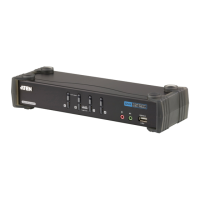
No. Component Description
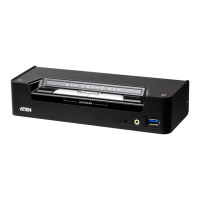
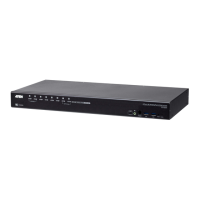
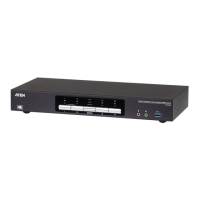
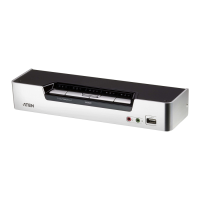
1 Port Selection
Pushbuttons
For manual port selection (see Manual Switching, page 13):
Press a port selection pushbutton for longer than two seconds to
bring the KVM, USB hub, and audio focus to the computer
attached to its corresponding port.
Press a port selection pushbutton twice to bring the audio focus to
the computer attached to its corresponding port.
Press a switch for less than two seconds to bring only the KVM
focus to the computer attached to its corresponding port.
Press switches 1 and 2 simultaneously for 2 seconds to start Auto
Scan Mode (see Auto Scanning, page 21).
2 Port LEDs The Port LEDs are built into the Port Selection Pushbuttons. The
upper are KVM Port LEDs; the lower are USB LEDs:
KVM
Lights DIM ORANGE to indicate that the computer attached to the
corresponding port is connected (online).
Changes to BRIGHT ORANGE to indicate that the computer
attached to its corresponding port is the one that has the KVM
focus (Selected).
Flashes to indicate that the computer attached to its corresponding
port is being accessed under Auto Scan mode.
USB
Lights GREEN to indicate that the computer attached to its corre-
sponding port is the one that has access to the USB peripherals.
3 Audio Ports The cables from your main speakers plug in here. The speakers
plugged in here have priority over those on the rear panel.
4 USB 3.1 Gen
1 Hub
USB peripherals (printers, scanners, drives etc.) plug into this port.
USB 3.1 Gen 1 port features 5 Gbps transfer rates.



 To Next Page
 Loading...