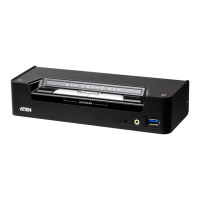
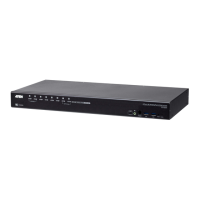
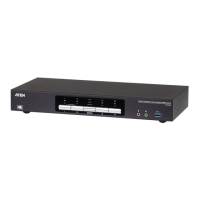
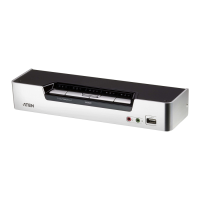
9
Chapter 2
Hardware Setup
Cable Connections
To set up your installation, refer to the installation diagram on the following
page (the numbers in the diagram on page 11 correspond to the steps below),
and do the following:
1. Plug the USB keyboard and USB mouse into the USB console ports
located on the unit’s rear panel.
2. Plug the console monitor into the DisplayPort console port located on the
unit’s rear panel and power on the monitor.
3. Plug the main speakers into the console speaker jack located on the unit’s
front panel. The speakers plugged into this port have priority over those in
the rear panel.
4. (Optional) Plug your secondary speakers into the console audio port
located on the unit’s rear panel.
5. Using the cables provided with this package, plug the DisplayPort, USB
3.0, and speaker connectors into their corresponding sockets in the KVM
Port section of the switch.
Note: Verify that all the plugs are in the same KVM Port sockets (all in
Port 1, all in Port 2, etc.), and that each socket is marked with an
appropriate icon to indicate itself.
6. At the other ends of the cables, plug the DisplayPort, USB 3.0, and
speaker connectors into their respective ports on the computer.
1. Important safety information regarding the placement of this
device is provided on page 35. Please review it before
proceeding.
2. Make sure that power to all the devices you will be installing has
been turned off. You must unplug the power cords of any
computers that have the Keyboard Power On function.



 To Next Page
 Loading...