11
Equalizer
Tap the EQ icon to set audio preferences.
EQ ICON SETTINGS:
• EQ Presets: Flat, Pop, Easy, Rock, Classic, Jazz.
• EQ User: Touch desired level of each selected frequency.
Unit will display the frequency adjusted and the level adjusted to.
• Q value: Sets the width of the adjusted frequency- narrow or wide.
SPEAKER ICON SETTINGS:
• Loudness: On / O
When set “On” frequencies are adjusted for enhanced listening at low volumes.
• Subwoofer: On / O
Select the frequecy range that will be sent to the Subwoofer output.
80Hz and lower
120Hz and lower
160Hz and lower
Select the Subwoofer Output Level.
0 - 14
• Fader / Balance
Touch on desired location of your choice on the for more focused listening position.
Touch the Center icon to revert to the default setting.
AUX
Tap the AUX icon to view and listen to the front 3.5mm A/V input.
Sound Recorder
Tap the Sound Reco... icon to record audible sound/speech.
Video
Tap the Video icon to view video le stored in the unit’s memory.
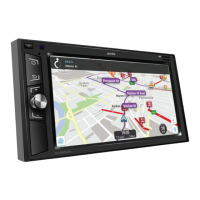
Maps
Tap the Maps icon to activate the Google Maps App.
*NOTE: The unit will need to be hot spotted to a Wi-Fi device or Smart Phone.


 To Next Page