9
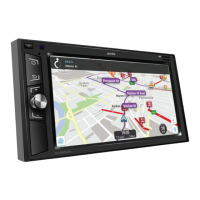
Navi
Tap the Navi icon on the Home Page to activate Google Maps.
*NOTE: The unit will need to be hot spotted to a Wi-Fi device or Smart Phone.
Music Function
Tap the Music icon on the Home Page to enter the music stored.
• You can play audio les from a USB device or from the internal memory.
• When playing a music le that is not supported, the system will display “fail to
play as the le format is not supported”.
• Tap the I◄ or ►I icon to play previous/next song.
• Tap the Pause icon to switch between Pause/Play.
Phone Mirroring Function
Tap the EasyConnection icon on the Home Page to enter the mirroring mode.
• This function allows you to view the phone’s screen on the unit.
• Via USB:
Android phones* will display the phone’s screen via USB and allow 2-way control
of the phone via the unit’s screen.
• Via Wi-Fi:
Apple & Android phones* will display the phone’s screen via wireless Wi-Fi, but will
not allow control of the phone via the unit’s screen.
*NOTE: phone updates can aect the EasyConnection performance and compatability.
Phone Mirroring Setup
Tap the EasyConnection icon on the Home Page to enter the mirroring mode.
• Select one of the 3 connect phone/modes.
• Follow the instructions highlighted.
• Press the Settings icon for more options.
Press the ? icon for help
*NOTE: on Android phones, the USB debugging function will need to be enabled.
This will be in the phone’s settings. (under Developer Options, check your phone’s manual for
more information.)


 To Next Page