8
Bluetooth Music
Tap the BT Music icon on the Home Page to enter the BT audio interface.
Unit will automaticlly start playing music from the paired device.
Tune and Seek
• Press the icon I◄ and ►I to skip forward or back track.
• Press the Pause/Play symbol acordingly.
Compatible paired devices will display the Track title, Artist name and Album name.
NOTE: For some mobiles, you may need to start the music app via your Device.
Must be paired via BT to the unit rst. Refer to page 8.
WAZE Navigation App
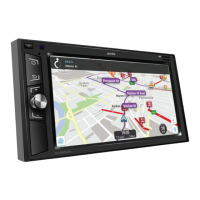
Tap the Waze icon on the Home Page to activate the App.
• This unit is pre-loaded with WAZE Navigation APP.
• Waze is owned by Google and is the world’s largest community-based
trac and navigation app. Unlike Google maps, Waze is designed to be a
dedicated in-car navigation system.
• Join other drivers in your area who share real-time trac and road info.
• Get alerted before you approach police, accidents, road hazards or trac
jams; all shared by other drivers in real-time, working together to get the
best route.
• Simply connect the unit to Wi-Fi signal or use your phone as a hot spot to
get access to real time information.
• WAZE will give you turn by turn navigation to your chosen destination and
help you to avoid trac jams and accidents etc. when it can.
WAZE Navigation Setup
• Turn on the device (smart phone etc.) Hotspot function.
• On the unit, access “Network & Internet” settings by sliding down the top
menu (see page 6, point 2.)
• Select Wi-Fi, and turn Wi-Fi function on.
The unit will scan for available Wi-Fi connections. Select your Hotspot device and
follow the password instructions.
Unit will say “Connected” when successful.
Press the Home icon to return to the home page, then select the Waze icon.
Then follow the Waze App setup steps and use information.


 To Next Page