24
Axess
®
Pro 1505 Installation Instructions
This section illustrates how to locate, view and adjust
parameters in the logic console unit.
Locating parameters
Refer to the CONSOLE MENU STRUCTURE or the
preceding section for CONTROL BOARD ADJUSTMENTS.
Locate the required parameter and note the MENU
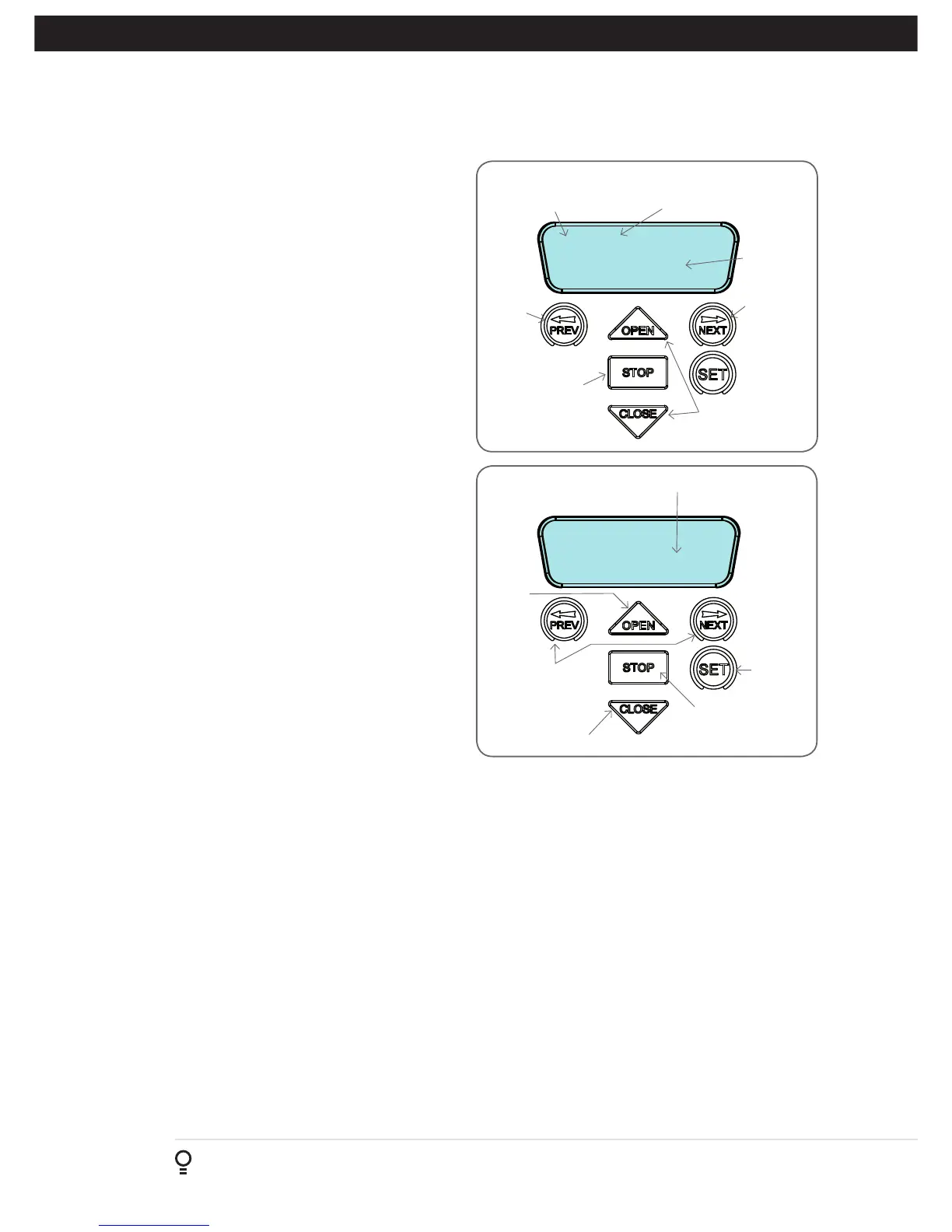
number. The example used in (Fig. B.1) displays Menu
2.2 “100% O/L Time”
Changing Settings
a. Press NEXT/PREV to navigate to the required menu.
b. Press SET to show the sub-menu.
c. Press NEXT/PREV to go to the required sub-menu.
d. Press OPEN/CLOSE to enter Edit mode and change
parameter setting (Fig B.2).
e. Holding the button down causes the parameter’s value
to change rapidly.
f. The longer the button is held, the faster the value
changes.
g. Press SET to SAVE the setting.
Reload Default Setting
a. Press NEXT/PREV buttons to display the LOAD
DEFAULT screen.
b. Press SET to load the default value.
Return To Menu
If the parameter’s value is not to be changed, press STOP
to return to the sub menu. Press STOP again to return to
the MAIN SCREEN.
2: 100% O/L Time
(sec) 10
(sec) 1∆
2: 100% O/L Time
Parameter
name
Parameter
value
Displays
next
parameter
in list
Parameter number
in sub menu
Displays
previous
parameter
in list
Returns back
to menu
Enter Edit Mode
View Mode (No cursor)
Edit Mode (Cursor shown)
Increase
value
Displays “Load
Default?” screen,
giving option of
loading default
value
Exits back to View
Mode
Decrease value
Saves new
value
Fig B.1
Fig B.2
Appendix
B - Viewing & Editing Logic Console Parameters


 To Next Page