877. 250.7729 | feeder-robot.com877. 250.7729 | feeder-robot.com
20 21
Status
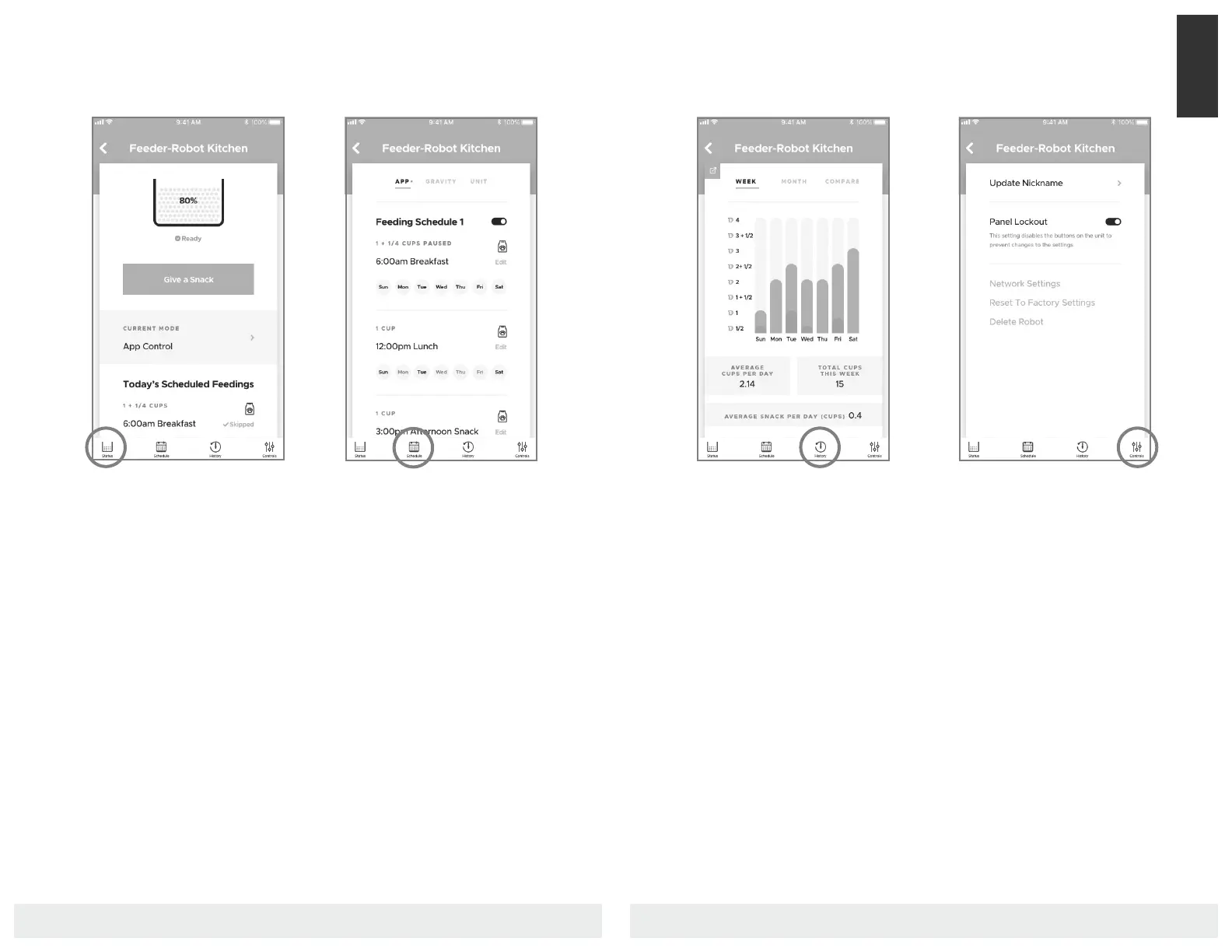
Your Feeder-Robot's home screen.
You will be able to see how full the
Feeder-Robot Hopper is and the
estimated upcoming fill date.
1. Hopper Status - View Hopper level
in increments of 10%.
2. Feeder Status - Displays current
status of the unit: Ready, Empty,
etc.
3. Give a Snack - Manually give a meal
or snack in 1/4-cup portions.
4. Current Mode: Displays whether
the unit is being controlled by the
app or unit Control Panel, or if it's in
Gravity Mode.
5. Schedule: Displays scheduled
feedings and any paused or
skipped feedings.
Schedule
1. Enable/Disable feeding schedules.
2. Edit/Delete feeding schedules.
3. View current feeding schedules.
4. Create Schedule - Set portion size
and add up to 8 meals per feeding
schedule. Set the time of day to
feed and which days of the week.
5. Enable/Disable Gravity Mode.
6. Pause/Skip Meal - Skips a meal for
the current day or pauses a meal
indefinitely.
App Screens & Features
History
View all historical feeder events on
a weekly or monthly basis. You can
also compare data between two
user-selected dates. Historical data
can be exported to a CSV.
Events include:
● Feedings
● Meals
● Snacks
● State Changes
Controls
Power the Feeder-Robot on or off
from the app. Set Control Panel
Lockout in order to disable the
buttons on the unit to prevent
changes to the settings.
1. Update feeder nickname
2. Enable/disable panel lockout
3. Network settings
4. Reset to factory settings
5. Delete feeder
App


 To Next Page