877. 250.7729 | feeder-robot.com877. 250.7729 | feeder-robot.com
10 11
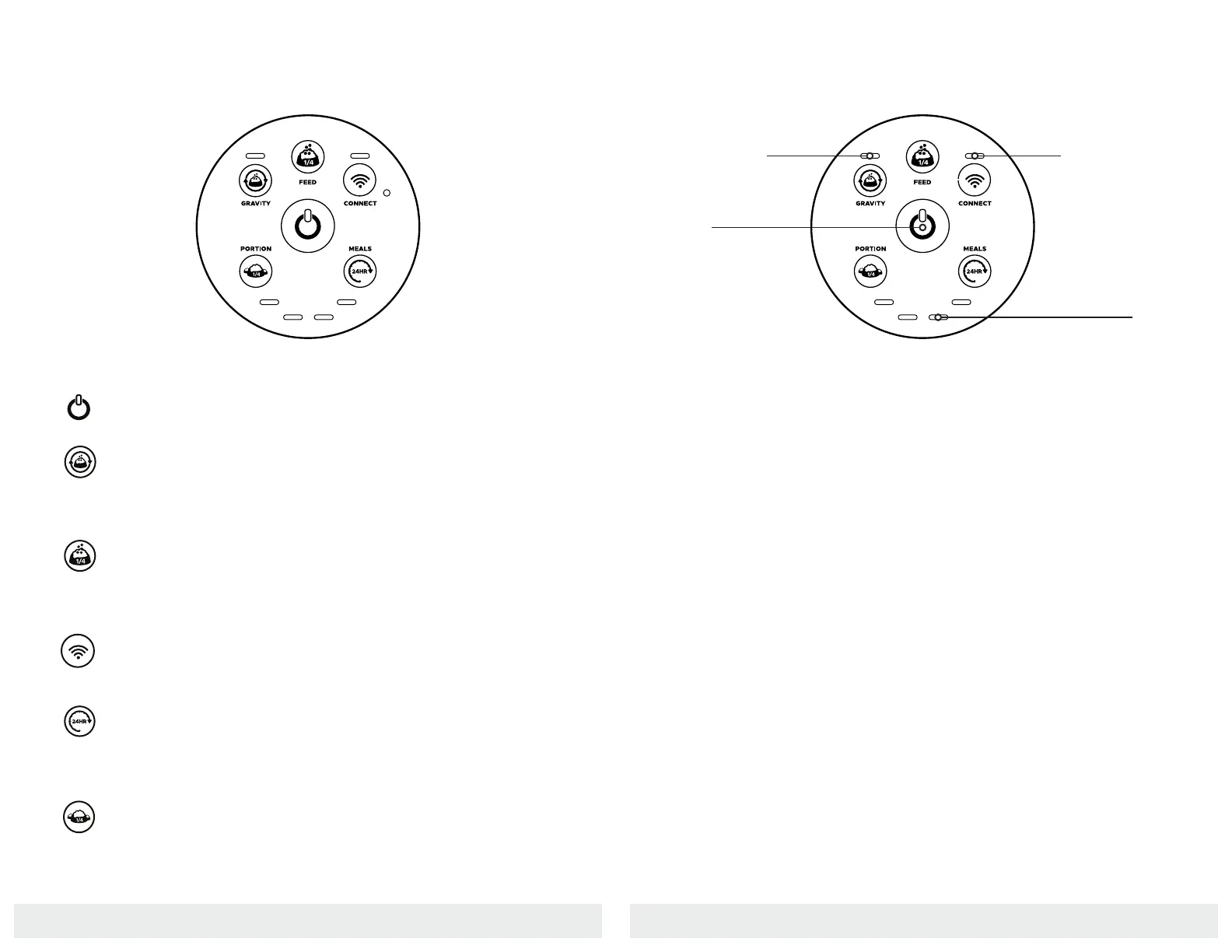
Power: Pressing the button turns the system power on and off and
also serves as an important indicator light for unit function status.
Gravity Mode: By enabling Gravity Mode, the unit will keep the
Bowl full by checking food levels every 60 minutes and adding as
needed. A 3-second press will enable or disable Automatic Night
Mode.
Feed: A short press of this button will feed a single 1/4 cup of
food. A 3-second press will enable and disable Control Panel
Lockout. Locking the Control Panel with this feature will ensure
buttons aren't accidently pressed after feeding is programmed.
Connect: Controls the WiFi onboarding process between the
Feeder and the app; a 3-second press begins the onboarding
process, and a short press disconnects the WiFi.
Meals: Sets the number of meals served per day. Tapping 1x allows
you to see how many meals have been programmed. The quantity
of meals currently programmed will be displayed in the Quantity
Indicator Lights.
Portion: Sets the number of 1/4 cups in a meal. Tapping 1x allows
you to see how many 1/4 cups have been programmed. The quan-
tity of portions currently programmed will be
displayed in the Quantity Indicator Lights.
Control Panel
Quantity Indicator
Lights
Power Button Lights
● Solid Blue: Unit is in normal operation
● Single Red Flash: Control Panel Lockout is activated
● Solid Yellow: Unit is in battery backup mode
Control Panel Lights
● Solid Light above Gravity button: The Feeder is in Gravity
Mode
Onboarding Lights
● Blinking Yellow: Ready for onboarding, waiting to connect to
a mobile device
● Blinking Blue: Onboarding in progress, connecting to the
internet
● Solid Blue: Onboarding complete. Unit is online and
connected to the internet
● Blinking Red: Fault detected
Control Panel
Gravity Mode
Power Button
Light
Button Functions Indicator Lights
Onboarding Light
Note: Automatic Night Mode automatically adjusts all lights depending on
lighting conditions.


 To Next Page