877. 250.7729 | feeder-robot.com877. 250.7729 | feeder-robot.com
26 27
Introducing Your Pet to the Feeder-Robot
Location Is Key
Place the Feeder-Robot in the same location as the current food
bowl(s), set it up, and make sure it is not scheduled to feed yet. Give
your pets a day or two to explore the Feeder-Robot. If your pets
show no interest, entice them to approach the Feeder-Robot by
using some treats.
Familiar Tastes
Add a small handful of your pet’s food to the Feeder-Robot Bowl to
provide a familiar meal for your pet.
Use Treats
Place treats in the Bowl or around the Feeder-Robot so your pet
associates rewards with the unit.
Introduce Automatic Feeding
Once you notice that your pets have eaten from the Feeder-Robot,
press the Feed button while your pets are in the room with you so
they can observe the food dispensing and become familiar with the
sound of the Feeder-Robot while you are there to reassure them.
Set Your Automatic Feeding Mode
Take away your pet’s old food bowls and set your choice of
Automatic Feeding Mode:
● Control Panel Mode: Meals scheduled via the Control Panel
● App Mode: Meals scheduled via the app
● Gravity Mode: Bowl automatically refilled every 60 minutes
For the next few days, keep an eye on your pet and the Feeder-Robot
to confirm that your pet is eating comfortably from the unit.
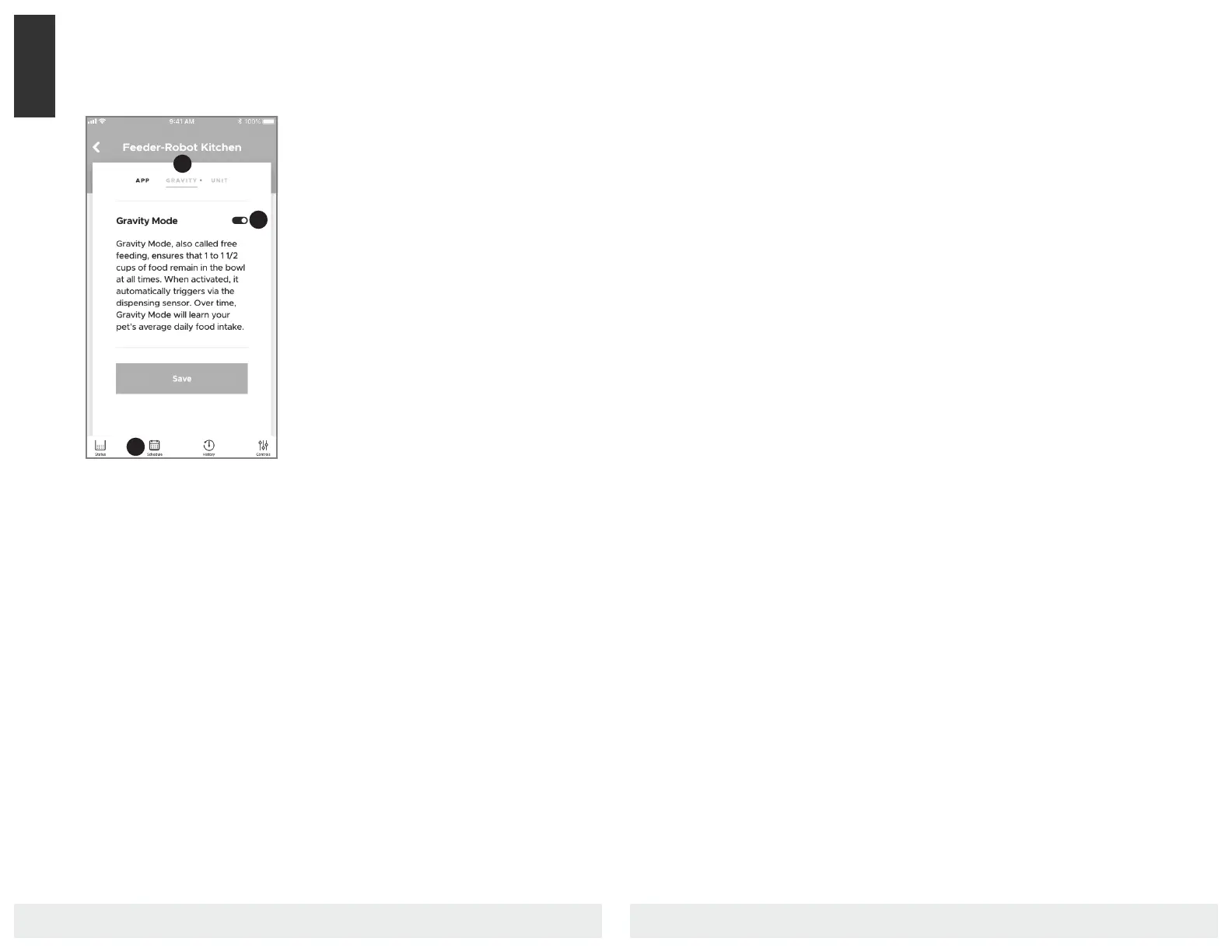
Gravity Mode Option
Gravity Mode, also called free feeding,
ensures that 1 to 1 1/2 cups of food
remain in the Bowl at all times. When
activated, it automatically triggers via
the dispensing sensor.
1. Click "Schedule" in the bottom
menu.
2. Toggle to "Gravity."
3. Toggle on and press "Save."
App
1
2
3


 To Next Page