Page 13
Before You Start
• Before scanning a vehicle, the EZ-Read EZ-Read must be
correctly configured for your vehicle. Refer to “Setup / Operating
Instructions” on page 7 if you need to configure the EZ-Read.
Scanning the Vehicle
1. Press POWER to display the EZ-Read EZ-Read opening
screen.
2. Turn the vehicle ignition key to ON or start the engine.
3. Press SCAN.
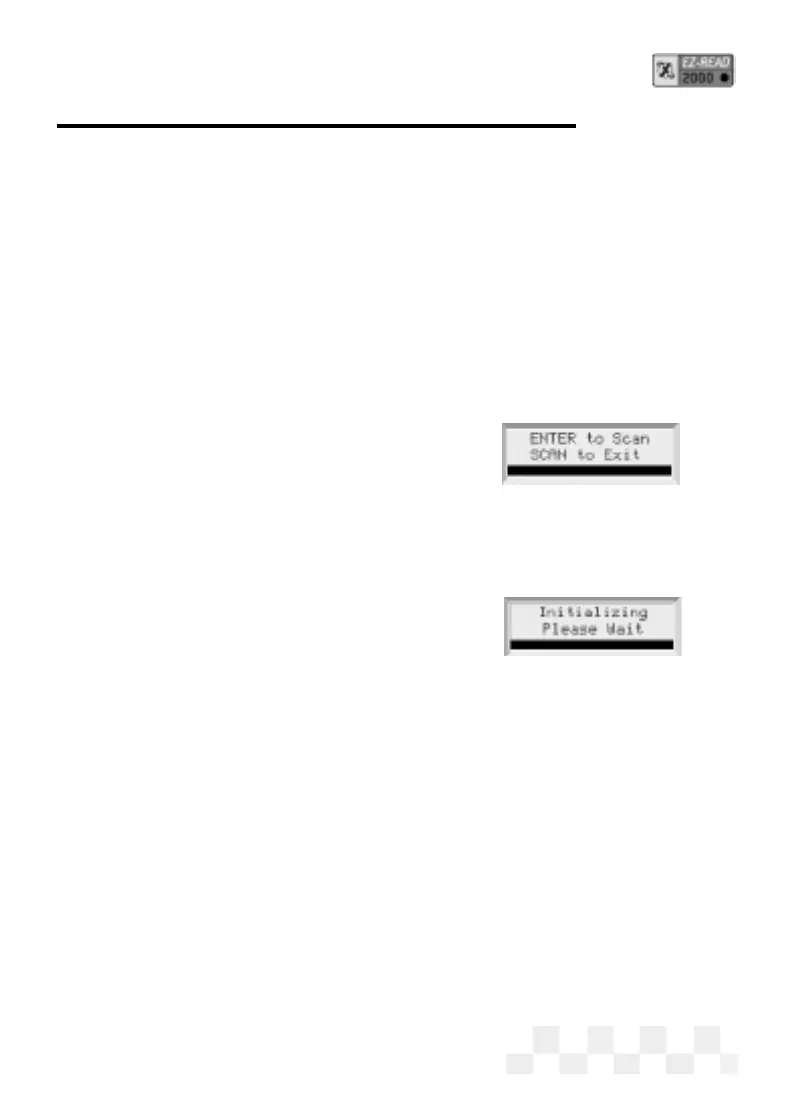
• When the EZ-Read is ready to scan
the vehicle,
ENTER to Scan will
be displayed on the screen. Press
ENTER to start scanning the vehicle computer/sensors.
(Pressing
SCAN again will take the unit out of Scan
mode and display the opening screen.)
•
[OBD-II] Before an OBD-II vehicle is
scanned, the vehicle computer and
the EZ-Read EZ-Read will initialize,
do a protocol check, then do Readiness Tests to make sure
the vehicle emission control system is working correctly.
(VPW, PWM, ISO 9141, and Keyword 2000 protocols are all supported.)
4. [OBD-II] The EZ-Read will indicate the MIL status (Malfunction
Indicator Lamp, or Check Engine Light),
ON or OFF. If there are
Trouble Codes stored in the OBD-II system, the scanner will
display the codes as they are read from the vehicle computer.
(These codes can also be viewed later. See “View Trouble
Codes-OBD-II” page 15.)
5. After the EZ-Read has read all the data from the vehicle, the Scan
Successful
message will be displayed on the screen. If the
EZ-Read could not read all the data from the computer or the
vehicle sensors, an error message will be displayed.
SCAN - OBD-II, GM, CHRYSLER OBD-I


 To Next Page