Notebook User Guide
18
• Touchpad Pointing Device
Microsoft and IBM PS/2 mouse compatible with three select buttons as
one Scroll button and two Touchpad click buttons. These three buttons
array below the Glide pad. The middle one is located with the Scroll
button that lets you execute the scroll page function. The two click
buttons located at each side support tapping selection and dragging
functions. These buttons work like a standard computer mouse. Simply
move your fingertip over the Glide Pad to control the position of the
cursor. Use the selection buttons below the Glide Pad to select menu
items.
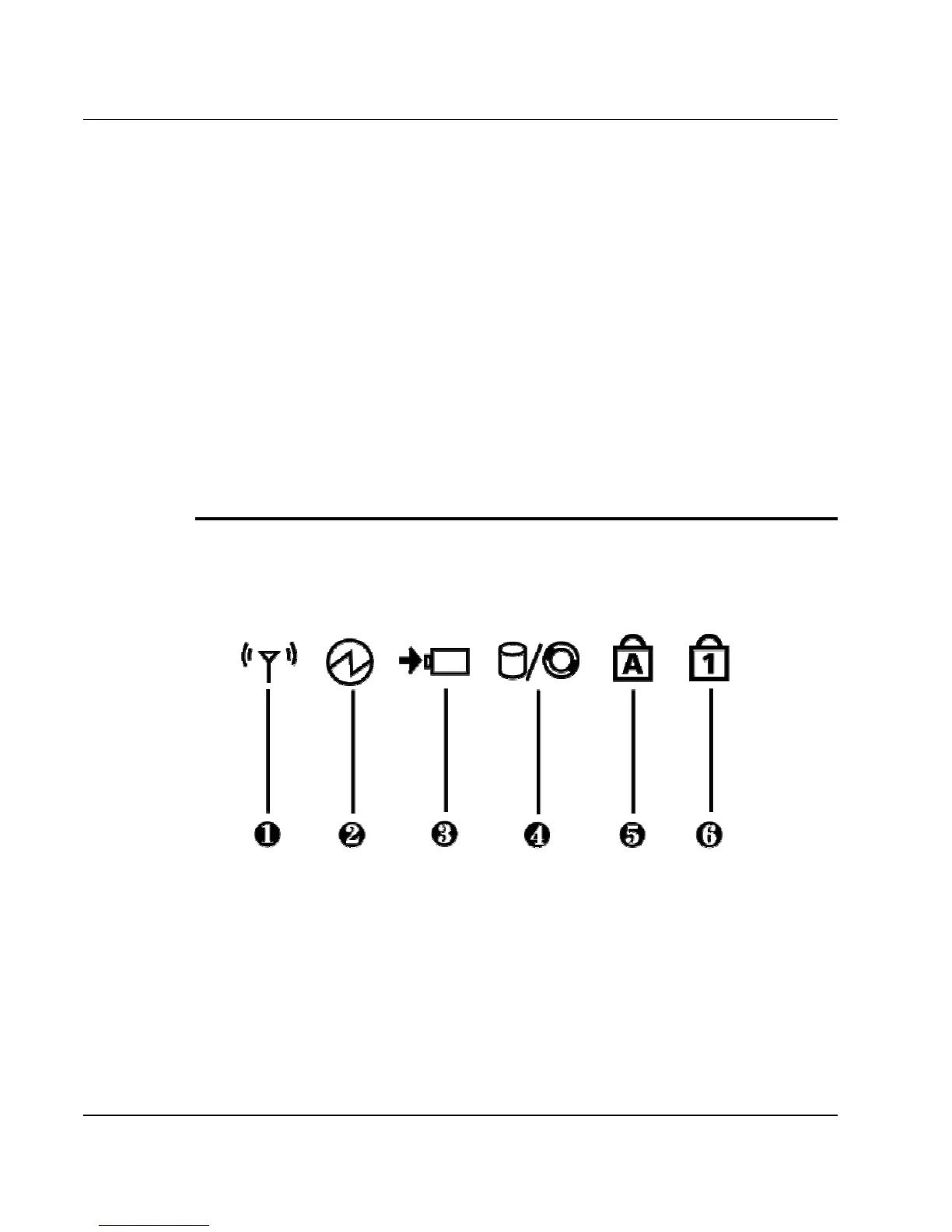
NOTEBOOK STATUS ICONS
The Status LED Panel keeps you informed of the notebook’s current
operating and power status. Each LED is marked with an icon to designate
the system status.
1. Wireless LAN Status 2. Power Indicator
3. Battery Charging LED 4. HDD/CD Access
5. Caps Lock 6. Num Lock
• Wireless LAN Status
When LED in green light indicates that the system is accessing data from
or is retrieving data by wireless LAN.



 To Next Page