39
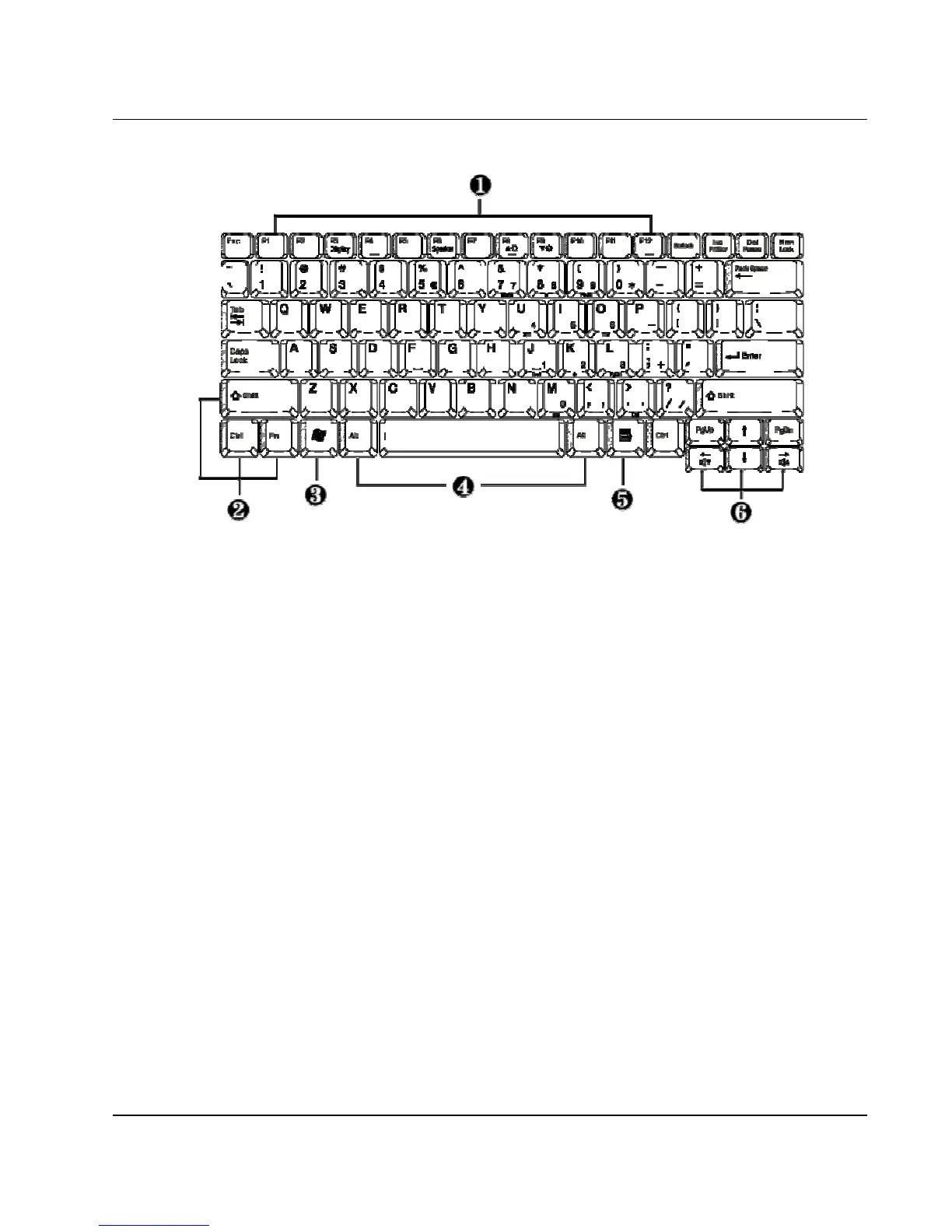
1. Function Keys 2. Control Keys
3. Windows Start Menu Key 4. Control Keys
5. Windows Shortcut Key 6. Cursor Control Keys
Keyboard
Key features and operations are described below:
• Function Keys
Function keys are application-driven, like F1 through F12 can be found
on the keyboard. These keys work together with the Fn key to activate
special functions. Some keys (printed in blue on keypad) are
preprogrammed with dual functions.
• Control keys — Ctrl, Alt, Fn, and Shift are controls used in
conjunction with other keys to change their functions. To use control
keys, press and hold the control key while pressing another key. For
example, "Press Ctrl-C" means to hold down the Ctrl key and type the
letter C. Key combinations work especially to the application you are
running.



 To Next Page