Notebook User Guide
46
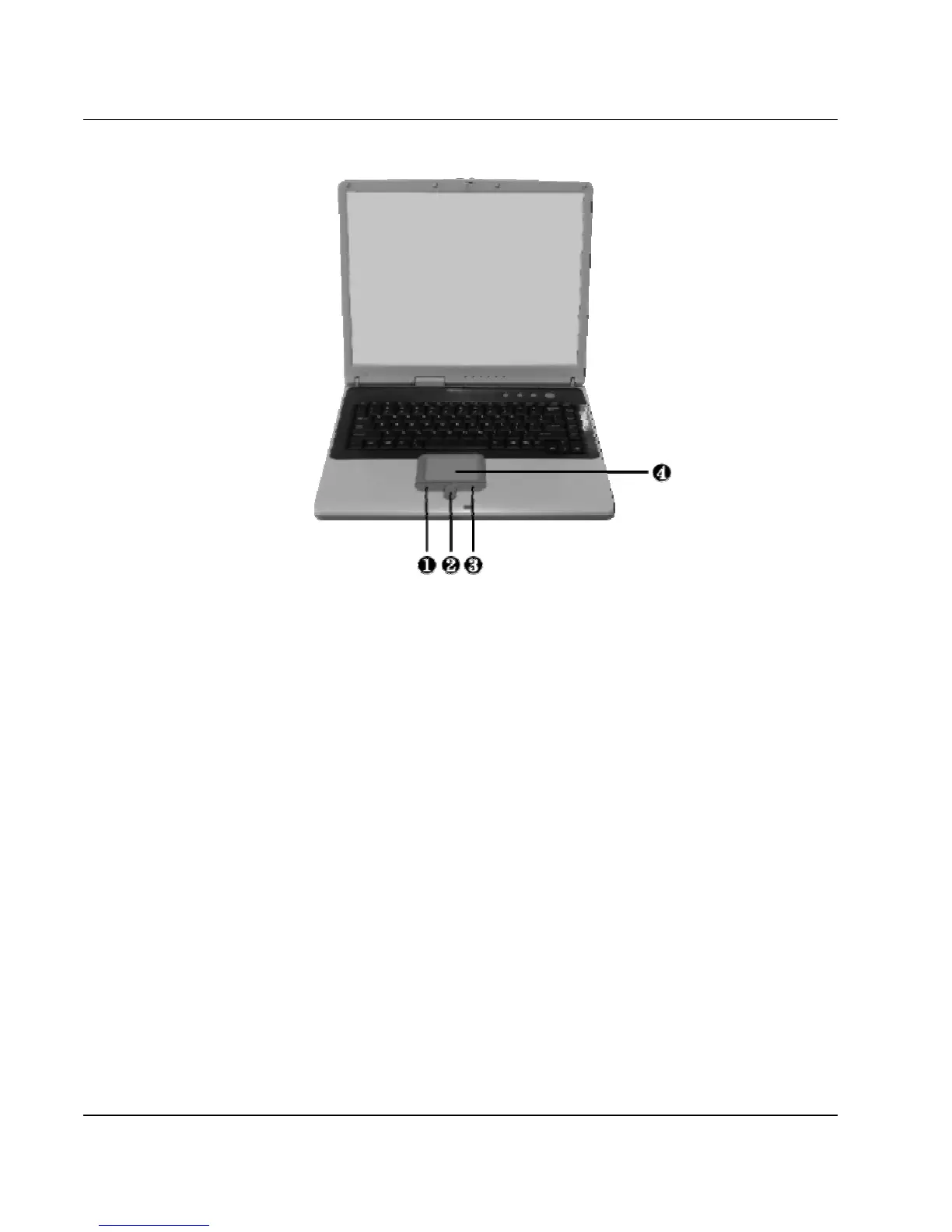
1. Left Selection Button 2. Scroll Button
3. Right Selection Button 4. Glide Pad
Glide Pad Features
Here how to use the Glide Pad pointing device:
1. The rectangular surface acts like a miniature duplicate of your display
screen. To move the mouse cursor, place the finger lightly on the sensor
pad and move in the desired direction. If you reach the end of the pad,
lift your finger and place it back down on the other side of the pad.
2. To select an item, click on the item by pressing the left button control or
by simply tapping on the surface once. A light, quick tap always works
best. To execute an item, click the left button twice or do a quick double
tap on the surface.



 To Next Page