Chapter 3: Track and Session Basics 17
Fader Strip Controls
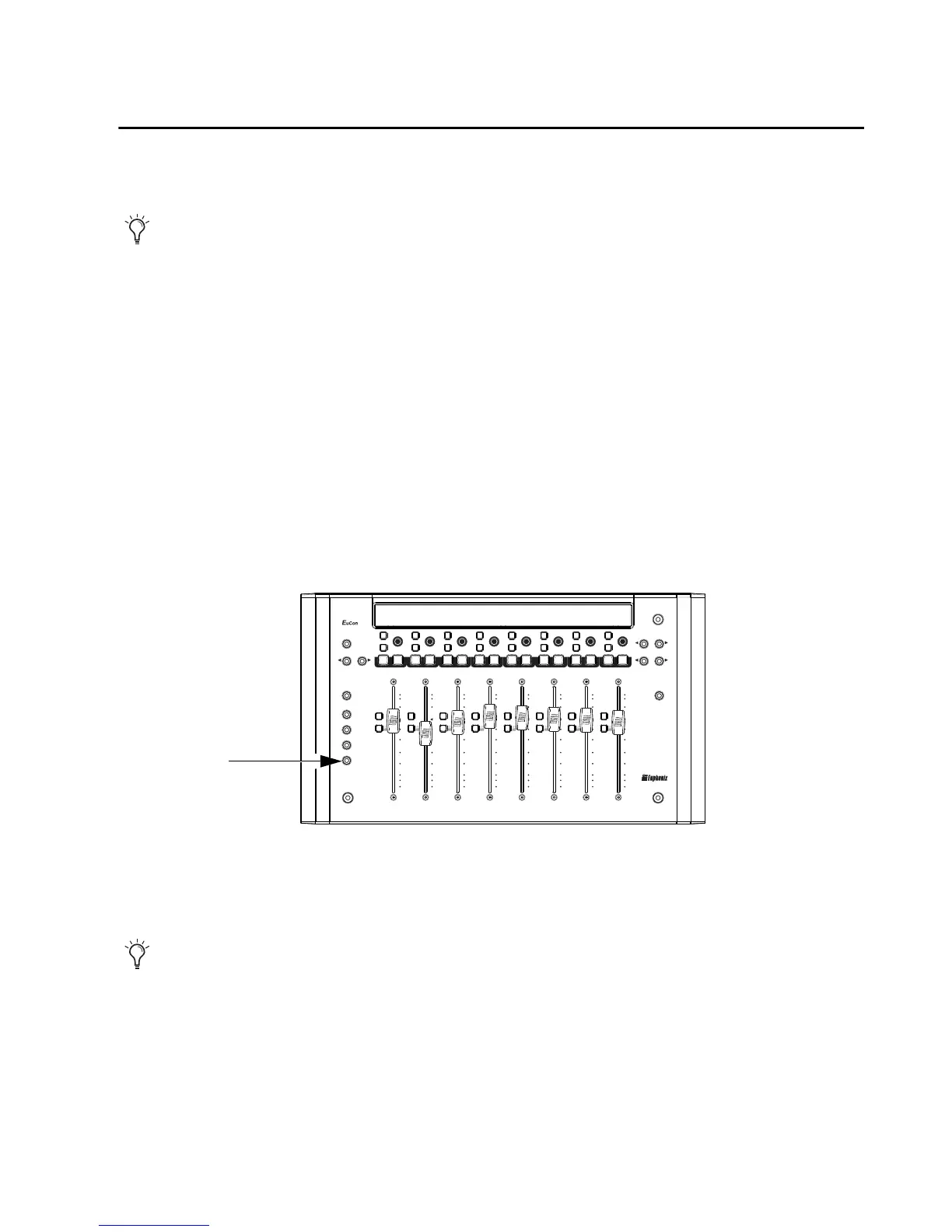
Fader strips on MC Control and MC Mix let you adjust track volume, pan, solo, and mute.
Adjusting Track Volume and Pan
This section shows how to adjust track volume and pan with MC Control or MC Mix. On MC Con-
trol, pan channel parameters are available through the Soft Encoders and Touchscreen. On MC Mix,
each channel strip provides one dual-function (rotate/push) encoder and two keys in the encoder row
(ON and SEL).
To adjust track volume:
Adjust the fader for that track.
To adjust track pan:
1 If unlit, press the PAN key so that it stays lit.
2 Rotate the encoder below the name of the track you want to pan. Stereo tracks default to Left pan.
3 To adjust right side pan on stereo tracks, press the lit PAGE > key and rotate the encoder for the de-
sired track. The display shows R Pan above stereo tracks and the < PAGE key lights.
Flip mode lets you control pan, plug-ins and sends from the fader strips. See “Flipping Encoder Param-
eters to Faders” on page 18.
MC Control provides two dedicated Soft Encoders for left and right pan.











 To Next Page