Artist Series and Pro Tools36
4 Press the encoder below the slot in which you want to insert a plug-in (such as slot a). The display
above the first three encoders now shows the following insert choices:
5 Do one of the following:
•Press the encoder below no insert to leave that slot unassigned.
•Press multi-channel or multi-mono to see a list of plug-in Categories (such as EQ, Dynamics, and
other) or Manufacturers. Keep pressing encoders to select the desired Category or Mfg (plug-in
names are shown across the display) and finally the desired plug-in.
•Press I/O to see available hardware inserts (not available on all systems). Press an encoder to as-
sign that hardware insert.
6 When the desired plug-in is displayed, press its encoder again to insert it on the selected track.
Making Plug-ins Inactive/Active on MC Mix
To toggle a plug-in between active and inactive:
1 Bank to and select the desired track by pressing its SEL key.
2 Press the INSERTS encoder.
3 Use the < PAGE and PAGE > keys to navigate the display until the desired insert slot and plug-in
name is shown.
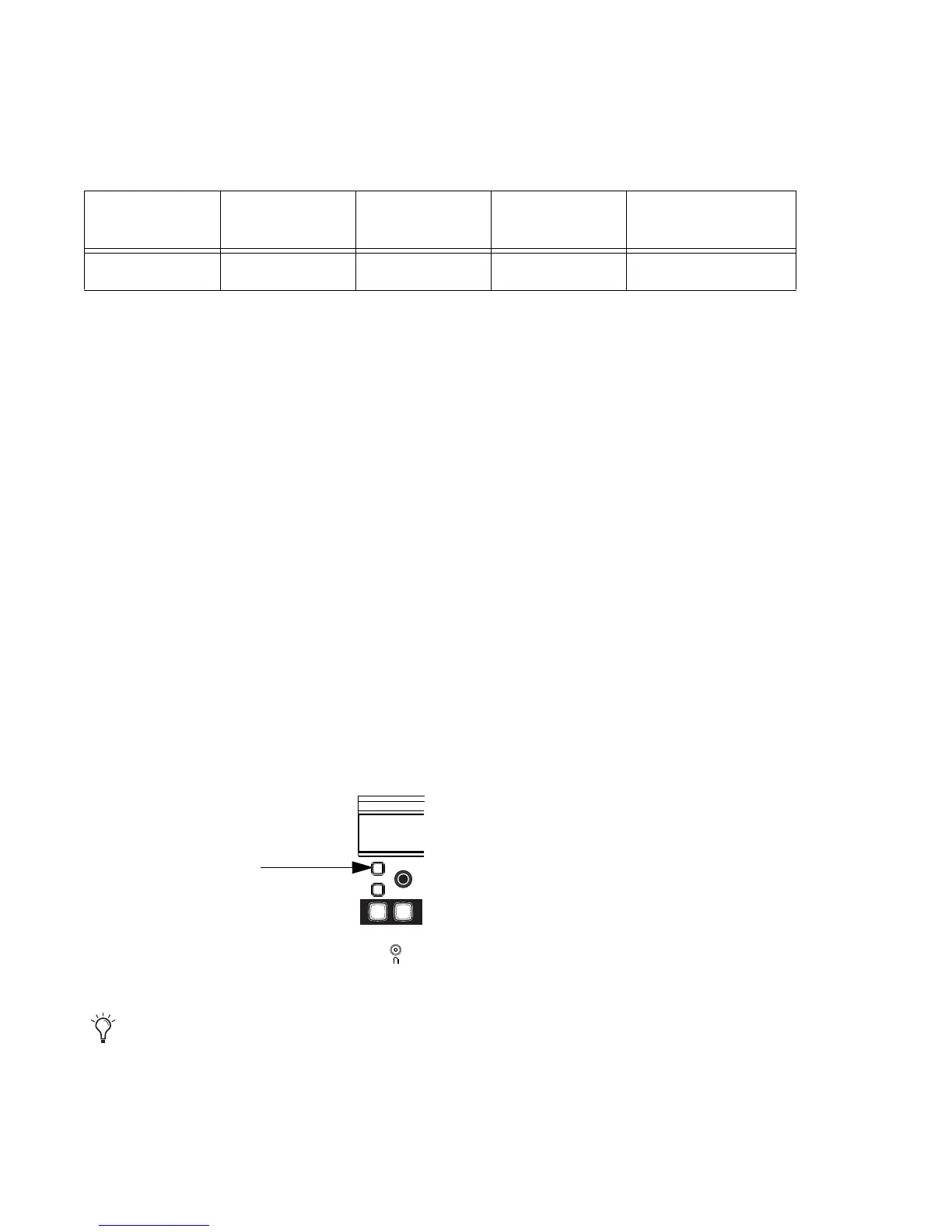
4 Hold Command+Control (Mac) and press the encoder row SEL key for the desired plug-in.
Display no insert multichannel multi-mono I/O (not available
on all systems)
Soft Encoder 1 2 3 r
Encoder SEL key on MC Mix
For information about automating plug-ins, see Chapter 7, “Automation and Mixing.”











 To Next Page