Power and Battery Fault Monitoring:
By default, fault monitoring of input power and battery on the system is disabled. To enable, perform
the following:
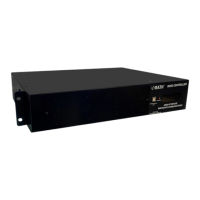
1. Connect a laptop or PC to the BOSS using the provided USB cable. Plug the USB-B side of
the cable into the USB-B port on the BOSS located to the left of the display. Plug the USB-A
side of the cable into any open USB port on the laptop or PC.
2. Plug the provided USB ash drive into any open USB port on the laptop or PC.
3. Open the Conguration Software from the ash drive by double-clicking on it.
4. Once the Conguration Software has opened, log into it using the following credentials:
Username: admin Password: password
5. Once logged in, Click the Begin button to enter the Quick Start screen Click Begin then
Connect to connect to the BOSS unit. The connection may take a few minutes to complete.
6. Click on the Conguration menu on the left.
7. In the General Information tab, click on System Fault Cong.
8. Click Edit Device.
9. Click the drop-down next to Supply Fault Input and select Active Low.
10. Click the drop-down next to System Fault Input and select Active Low.
NOTE: Do not use Active High setting as it will trip when voltage is applied vs voltage lost.
11. Click Finish Edit to save.
12. Close out of the Conguration Software before testing by clicking the “X” / Close icon in the
top right corner.
Testing:
Power Loss: Unplug 110vac incoming power from 1000 power supply. Within 90 seconds the
display on BOSS should show Supply Fault Input fault and system fault relay output
should change state.
Battery Loss: Disconnect battery from 1000 power supply, when battery drops below 5vdc, within
90 seconds the display on the BOSS should show Battery Fault and fault relay
output should change state.
NOTE: If the battery on the 1000 power supply is fully charged it may take up to 12 hours for the
battery to drop below 5vdc.
Page 18


 To Next Page