Page 10 Page 11
Powering on the System
1. Screw the terminal connector cover back on to the front of the BOSS unit.
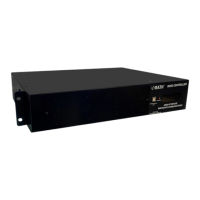
2. Once all connections have been terminated, power on the BOSS using the power switch
on the back of the unit. The Call Commander will start the boot process. While the Call
Commander is booting, the BOSS should display the correct number of connected Call
Boxes, one Call Commander, and the correct number of external phone lines. All call boxes
should have the green power LED on the faceplate illuminated.
NOTE: If the information on the BOSS display is not correct upon start-up, there is likely a wiring
or connection issue. Please power down the system and correct the issue before resuming
setup of system.
3. Upon rst power up, the BOSS controller will sound it’s internal alarm due to lack of
conguration. There will be multiple scrolling “SYS CONFIG XX” errors. Press and hold
the mute button next to the display on the front of the BOSS controller for two seconds to
silence the alarm. Once the conguration is complete, faults will clear automatically.
System Programming
1. Before programming, verify the Call Commander has fully booted.
2. Connect a laptop or PC to the BOSS using the provided USB cable. Plug the USB-B side of
the cable into the USB-B port on the BOSS located to the left of the display. Plug the USB-A
side of the cable into any open USB port on the laptop or PC.
3. Plug the provided USB ash drive into any open USB port on the laptop or PC.
4. Open the Conguration Software from the ash drive by double-clicking on it.
5. Once the Conguration Software has opened, log into it using the following credentials:
Username: admin Password: password
5. Once logged in, the Conguration Software will take you to the Quick Start screen to give
an overview of the Congurator. Click the Begin button after reading. After clicking Begin,
click Connect to connect to the BOSS unit. The connection may take a few minutes to
complete. After connecting, the Congurator should show the correct number of connected
Call Boxes, Call Commanders, and external phone lines.
NOTE: If conguration software shows incorrect information there is likely a wiring or connection
issue. Please exit the conguration software, power down system, and correct the issue
before resuming setup of system.
7. Click the Conguration option on the left. The app will automatically go to the General
Information menu and System Information tab.


 To Next Page