User’s Manual
31
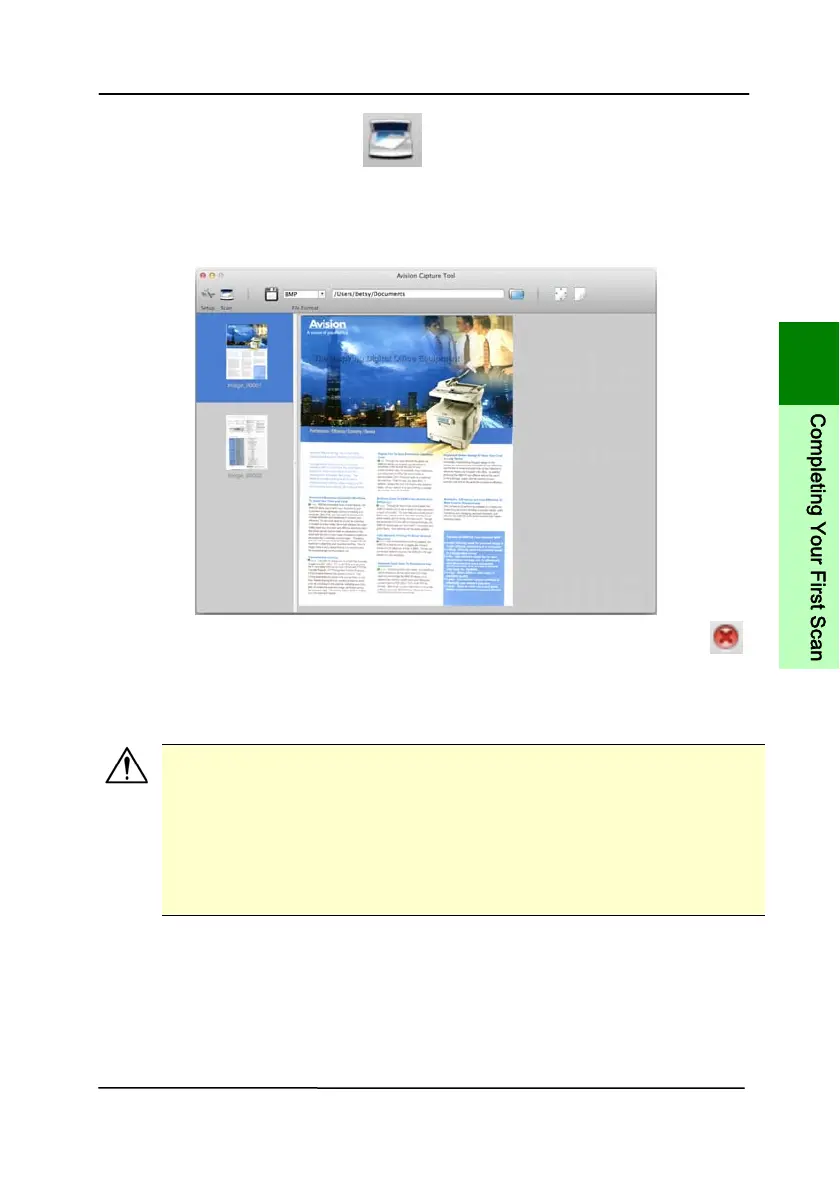
5. Click the Scan button ( ).
6. The document will be scanned and displayed in the main
window of Avision Capture Tool.
7. To leave the main window of Avision Capture Tool, click (
)
on the upper-left corner.
Important!
Please note the scanner buttons do not work if you
start a scan via the Avision Capture Tool.
To perform your first scan, we recommend you to
use the default scan settings. When you become
more familiar with the software, change the scan
settings to fit your own purpose.
3
C
o
m
p
l
e
t
i
n
g
Y
o
u
r
F
i
r
s
t
S
c
a
n


 To Next Page