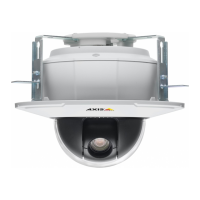
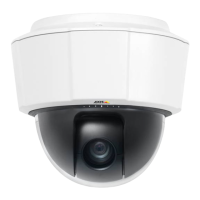
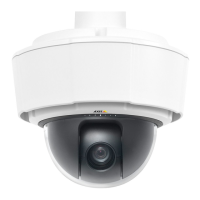
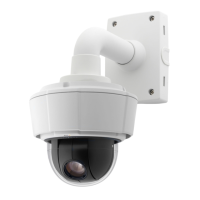
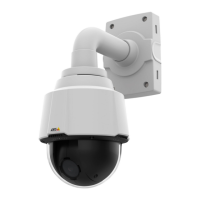
AXIS P5534 PTZ Dome Network Camera
Video and Audio
• The Live View page in Internet Ex plorer in Windows. Right-click i n the image and select Pixel counter.Usethemouse
to move and resize the rectangle.
Image
You can modify the image resolution and compression, and rotate the image from the Image tab (Video & Audio > Video Stream).
Setting the compression level affects the image quality and bandwidth; the lower the compressio n, the higher the image quality
with higher bandwidth requirements.
To avoid bandwidth problems on the network, you can limit the fra me rate allowed to each viewer. The maximum frame rate can be
set to Unlimited, or you can limit the frame rate to a value.
An image or text can be superimposed over the image as overlay. See Overlay, on page 19.
Save your settings befo re they can take effect.
H.264
H.264, also known as MPEG-4 Part 10/AVC, is a video compression standard that provides high quality video streams at low bit rates.
An H.264 video stream consists of differe nt types of frames such as I-fra mes, P-frames and B-frames . An I-frame is a complete image
whereas P-frames and B-frames only contain the differences from pre vious/future frames.
The GOV length is the number of frames between two consecutive I-frames. Increasing the GOV length may save considerably on
bandwidth requirements in some cases, but ma y also have an adverse affect on image quality.
ThebitratecanbesetasVariable Bit Rate (VBR) or Constant Bit Rate (CBR). VBR adjusts the bit rate according to the image
complexity, using up more bandwidth for increased activity in the image, and less for lower image activity. CBR allows you to set a
fixed Target bit rate that consumes a predictable amount of bandwidth. As the bit rate would usually need to increase for increased
image activity, but in this case cannot, frame rate and image quality are affected negatively. To partly compensate for this, it is
possible to prioritize either frame rate or image quality. Not setting a priority means that frame rate and image quality are equally
affected. You must save your settings before they c an take effect.
The current bit rate can be set to appear as text overlay. To do this, select the In
clude text check box option under Overlay
Settings and enter the modifier#b in the field.
MJPEG
Sometimes the ima ge size is l arge due to low light or complex scene ry. Adjusting the maximum frame size helps to c ontrol the
bandwidth and storage used by the Motion JPEG vi
deo stream in these situations. Setting the frame size to the Default setting
provides consistently good image quality at the expense of increased bandwidth and storage usage in low light. Limiting the frame
size optimizes bandwidth and storage usage, but may give poor image quality. To prevent increased bandwidth and storage usage,
the maximum frame size should be set to an o
ptimal value .
Stream Profiles
There are four pre-programmed stream profiles available for quick set up. The settings for these can be adjusted. New customized
profiles can also be created. Each profile has a descriptive name, indicating its purpose.
•Thestreamprofiles can be accessed from the Stream profile drop-down list in the Live View page.
• To add, copy, modify, a nd remove stream profiles go to Video & Audio > Stream Profiles.
• To select the default stream profile go to Live View Config > Stream Profile and choose t he profile fro m the drop-down list.
Fo
r more information see the online help
on this page.
Camera Settings
The Video & Audio > Camera Settings page provides access to advanced image settings for the Axis product.
17



 To Next Page