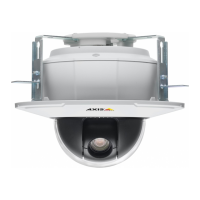
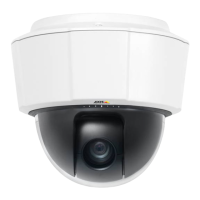
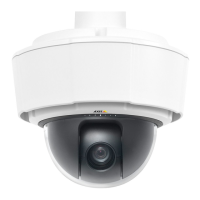
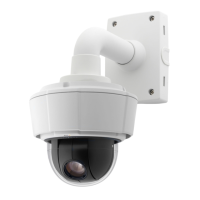
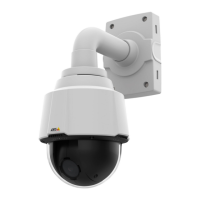
AXIS P5534 PTZ Dome Network Camera
Events
- Use Schedule — trigger the rule a ccording to the s e lected schedule, see Schedules, on page 33.
Available actions include:
• Day/Night Vision Mode —setdaymode(IRcutfilter on) or night mode (IR cut filter off).
• Output Port — activate an I/O port to control an external device.
• Play Audio Clip —seeAudio Clips, on page 21.
• PTZ Control
- Preset Position — go to a preset position.
- Guard Tour — start a guard tour, see Guard Tour, on page 26.
• Record Video — record video to a selected storage.
• Send Images —sendimagestoarecipient.
• Send Notifications —sendanotification message to a recipient.
Convert Event Types to Action Rules
If the Axis product is upgraded to firmware version 5.40 or later, it is recommended to convert Event Types to Action Rules.The
legacy user Event Types in the came ra w ill continue to work but will not be visible in the user interface of the camera. The Event
Types need to be converted to Action rules to beco me visible in the user interface.
To convert Event Types to Action Rules go to Events > Action Rules and click Convert.
Caution
This is not recommended when using a VMS bas ed on the old E vent Management System.
Setting Up an Action Rule
An action rule defines the conditions that must be met for the product to perform an action, for example record video or send email
notifications. If multiple conditi
ons are defined, all must be met to trigger the action.
The following example descri
bes how to set up an actio n rule to record video to a network share if there is movement in the
camera’s field of view.
Set up motion detection and a dd a network share:
1. Go to Detectors > Motion Detection and configure a motion detection window, see page 28
2. Go to System Options > Storage and set up the network share, see page 44.
Set up the action rule:
1. Go to Events > Action Rules and c lick Add.
2. Select Enable rule and enter a descriptive name for the rule.
3. Select Detectors from the Trigger drop-down list.
4. Select Motion Detection from the drop-down list. Select the motion detection window to use.
5. Optionally, select a Schedule and Additional conditions,seebelow.
6. Under Actions, select Record Video from the Type drop-down list.
7. Select a Stream profile and configure the Duration settings as describ ed below.
32



 To Next Page