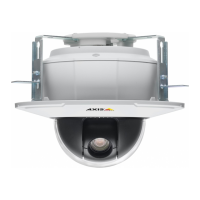
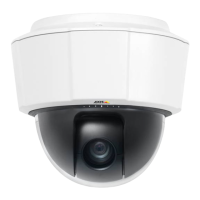
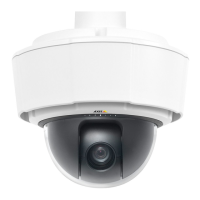
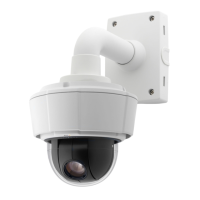
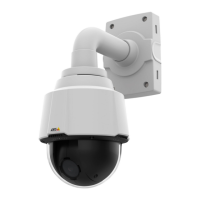
AXIS P5534 PTZ Dome Network Camera
Live View Config
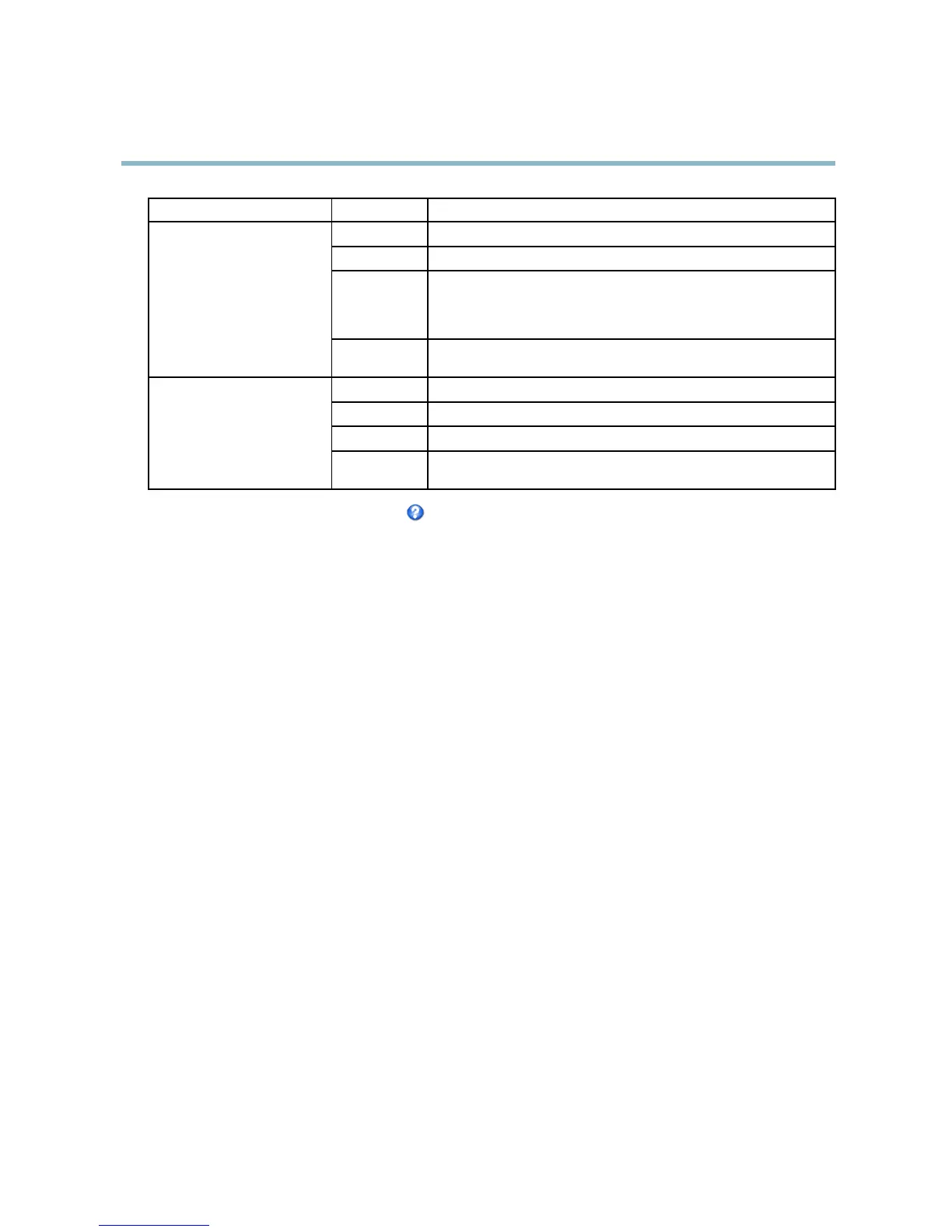
Browser Viewer Description
AMC
Recommended viewer in Internet Explorer (H.264/Motion JPEG)
QuickTime
H.264
Java applet
A slower imaging alter n ative to AMC (Motion JPEG). Require s one of the
following installed on t he client:
• JVM (J2SE) 1.4.2 or higher
• JRE (J2SE) 5.0 or higher
Windows Internet Explorer
Still image Displays still images only. Click the Refresh button in your browser to view a
new image
Server Push
Recommended vi ewer for other brow sers (Motion JPEG).
QuickTime
H.264
Java applet
A slower imaging alternative to Server Push (Motio n JPEG onl y ).
Other browsers
Still image Displays still images only. Click the Refresh button in your browser to view a
new image
For mo re informa tion, please see the online help .
Viewer Settings
Options for the viewer are configured under Live View Config > Viewer Settings.
•TheShow viewer toolbar option will display the AXIS M edia Control (AMC) o r the QuickTime viewer toolba r under the
video image in your browser.
• H.264 decoder installation . The administrator can d isable installation of the H.264 decoder included with AXIS Media
Control. This is used to prevent installation of unlicensed copies. Further decoder licenses can be purchased from your
Axis reseller.
•SelectShow crosshair in PTZ joystick mode to enable a cross that will ind icate the center of the image in PTZ joystick mode.
•SelectUse PTZ joystick mode as default to enable joystick mode. The mode can be changed temporarily from the PTZ
control panel.
• You can e nable r ecording from the Live View pag e. The recordings are saved to the location specified in the AMC Control
Panel. See AXIS Media Control (AMC), on page 12.
User Defined Links
To display user-defined links in the Live View page, se lect the Show custom link option, give the link a name and then enter the URL
to link to. When defining a web link do not remove the 'http://' from the URL address. Custom links can be used to run scripts or
activate external devices connected to the product, o r they can link to a web page. Custom links defined as cgi links w ill run the
script in the background, in a hidden frame. Defining the lin k as a web link will open the link in a new window.
Output Buttons
An output on the Axis product can be controlled directly from the Live View page, by enabling the display of output buttons. To
display the output buttons in the Live View page, select the type of control to use for the port from the drop-down list under
Live View Config > Output Buttons:
• Pulse activates the output for a defined period of time. The pulse time can be set as short as 1/100 second, and as
long as 60 seconds
• Active/Inactive displays two buttons (on/off). The output ports must first be configured under System Options> Ports &
Devices > I/O Ports.SeeI/O Ports, on page 44.
23



 To Next Page