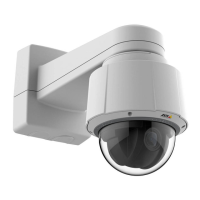
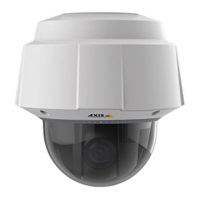
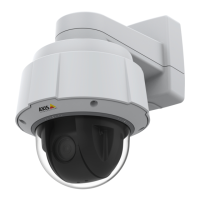
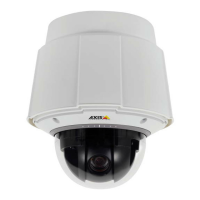
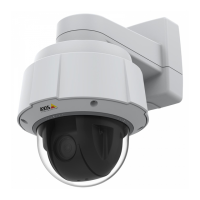
AXISQ6055PTZDomeNetworkCamera
PTZ(PanTiltZoom)
PTZ(PanTiltZoom)
Aboutpresetpositions
Apresetpositionisasavedviewthatcanbeusedtoquicklysteerthecameratoaspecicposition.Apresetpositionconsistsof
thefollowingvalues:
•Panandtiltpositions
•Zoomposition
•Focusposition(manualorautomatic)
•Irisposition(manualorautomatic)
Howtoaccessthepresetpositions
Presetpositionscanbeaccessedinseveralways:
•ByselectingthepresetfromthePresetpositionsdrop-downlistintheLiveViewPage.
•Whensettingupactionrules.Seepage42.
•Whensettingupguardtours.Seepage31.
•WhensettinguptheGatekeeper.Seepage31.
Howtoaddapresetposition
1.GotoSetup>PTZ>PresetPositions.
2.Clickintheimageorusethecontrolstosteerthecameraviewtothedesiredposition.
3.WriteanameintheCurrentpositioneld.
4.Ifrequired,selectUsecurrentpositionasHome.
5.ClickAddtosavethepresetposition.
Howtoincludethepresetpositionnameinanoverlaytext
1.GotoVideo&Audio.
2.SelectIncludeoverlaytext.
3.Writethemodier#Pintheeld.
4.ClickSave.
SettheHomePosition
TheHomepositionisreadilyaccessiblebyclickingtheHomebuttonontheLiveViewpageandinthePresetPositionssetupwindow.
Tosetacustomizedhomeposition,selectUsecurrentpositionasHomewhenaddingapresetposition.Theuser-denedhome
positionwillhave(H)added,forexample,Entrance(H).ThedefaultHomeposition,called“Home”,willstillbeavailable.
TheproductcanbeconguredtoreturntotheHomepositionwhenthePTZfunctionalityhasbeeninactiveforaspeciedlength
oftime.EnterthelengthoftimeintheReturntohomewheninactiveeldandclickSave.Setthetimetozerotopreventthe
productfromautomaticallyreturningtotheHomeposition.
29



 To Next Page