Page 17
In Microsoft® Word
2-4 Printing a card
A large number of Windows applications allow documents to be printed (for example the tools in Microsoft’s Office suite, i.e. MS-Word, MS-Access, Ms-Excel, MS-PowerPoint).
To gain familiarity with the layout of a card and configuring its formatting and printing, we suggest the following example.
After having set the BadgePass printer as the default:
• Start the MS-Word application
• Click on the File in the menu bar, then on Page Setup
• In the Margins tab, set all margins to ‘0’, then in the Orientation section, select Landscape.
• The Paper tab has a Paper Size option, select CR80 Card
• For Word 2010: click the Page layout tab, then click on Size and select ‘CR80 Card‘
• Close the window by clicking OK.
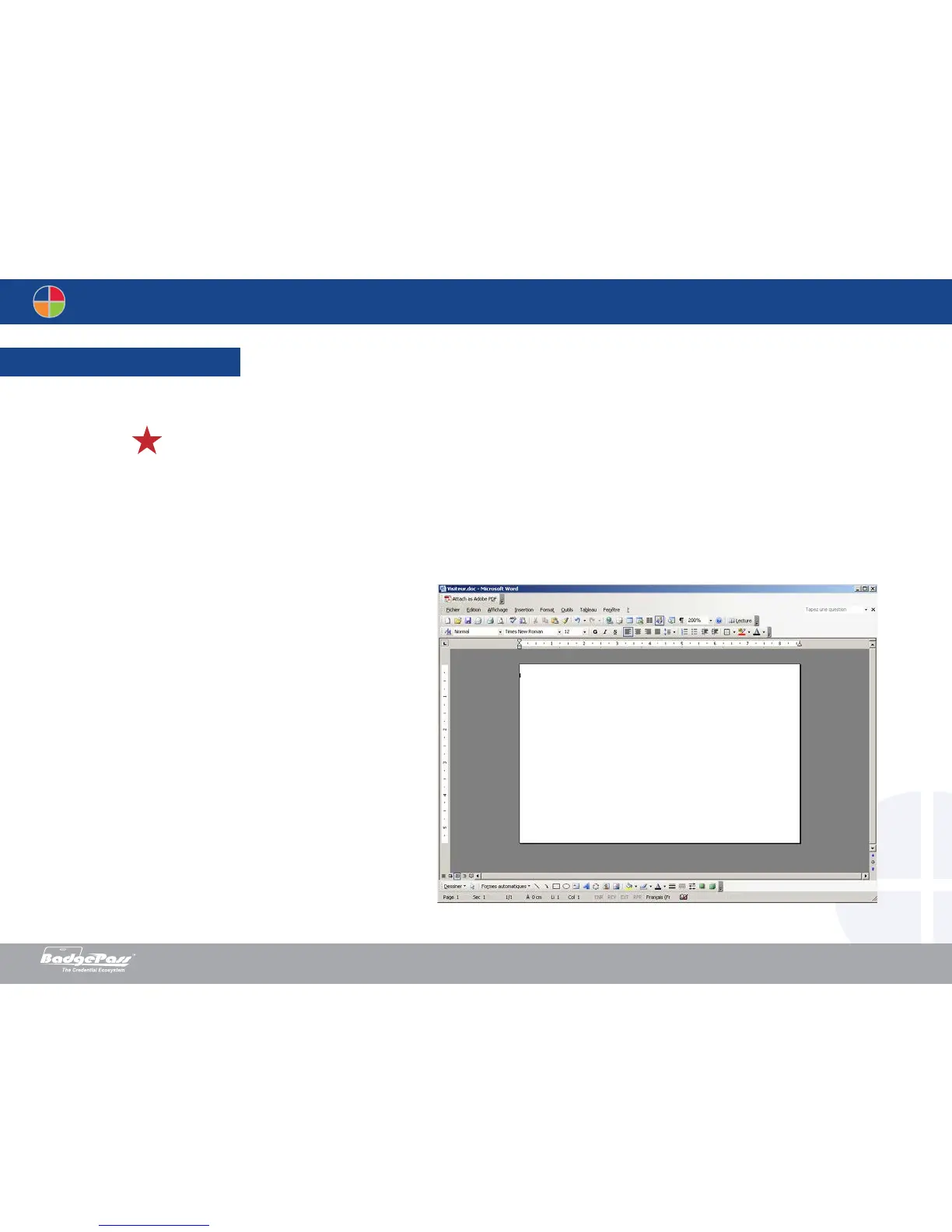
Your Word window should now look like this:
You are ready to customize your card by adding the various items that go to
make up a card:
• Logo and Illustration
• Identification photo
• Fixed and variable texts
• Bar Code, etc.
Once ready, click on File and then on Print.
Document History
BadgePass NXT5000 USER GUIDE



 To Next Page