14
SG200 Layout and Operation
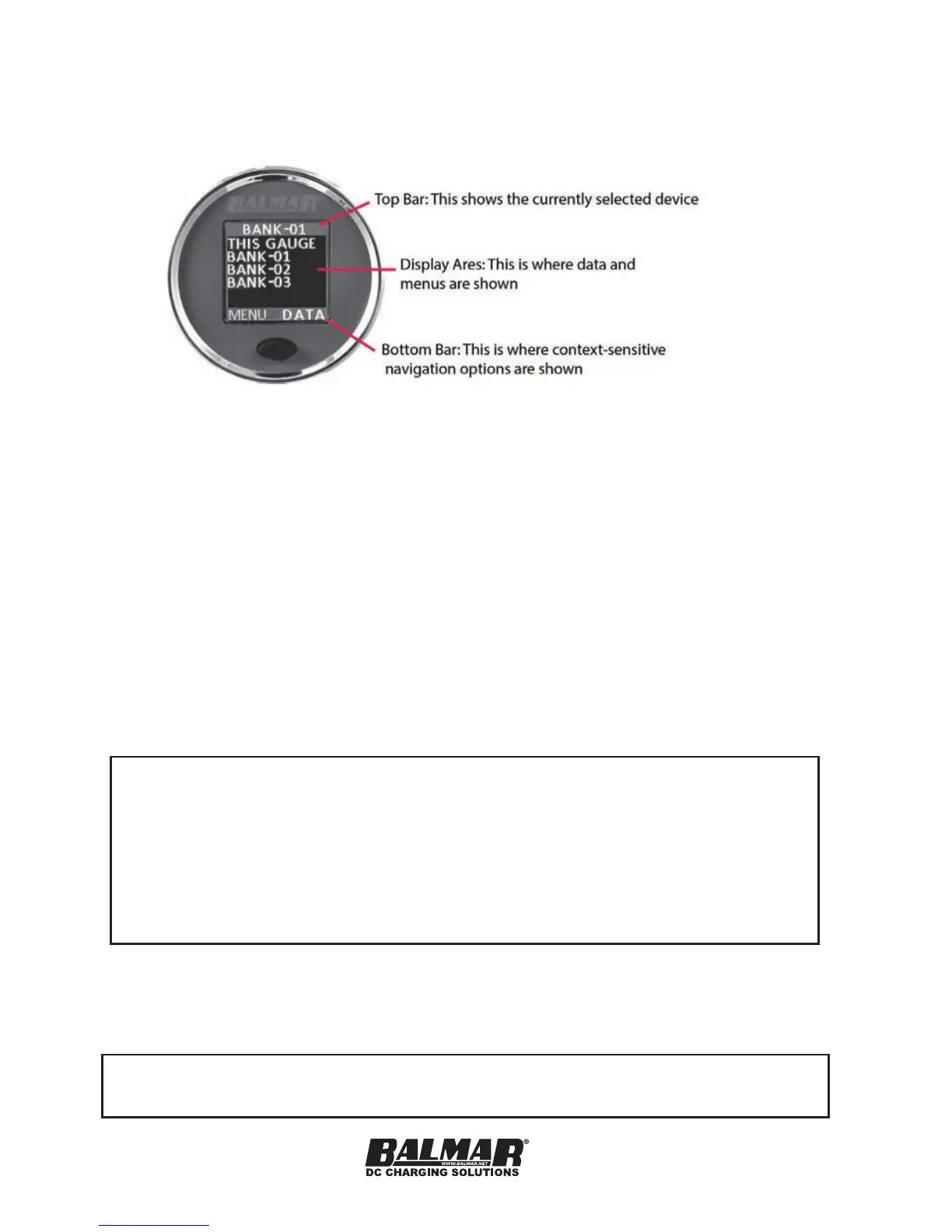
The SG200 has three main data display areas, as shown below.
Single Button Operation
The SG200 has a single button for ease of operation. A button press can be:
1. Short Press
2. Long Press (release as soon as screen ashes)
3. Extra-Long Press (about three seconds)
Short presses take you from one item on the screen to another. For instance,
if the screen is showing Voltage, a single short press will change the screen to
show Current in amperes.
A long press is used to make a selection or enable the editing of a value. As
soon as you see ashing on the screen, you have made a long press and then
release your nger.
EXAMPLE: If you are looking at a list of devices on the SmartLink
network, you can use short presses to move from one device
to the next. When you have the desired device highlighted, a
long press will select the device, and show the real-time data for
that device. Similarly, if you are again back at the list of devices,
and use short presses to highlight “Setup”, a single, long press
will take you to the setup menu for the selected device.
The extra-long press will take the user to the INTENSITY menu directly, where
a dimming level can be chosen. Dimming is also managed by the power
management function of the DISPLAY menu.
NOTE: If left on any MENU screen, the Display will
revert to Real-Time Data after a time.


 To Next Page