R5900120 /03 ClickShare CX-50 Gen244
3.15 Content Audio connection
About content audio (no speakerphone connected)
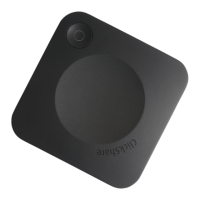
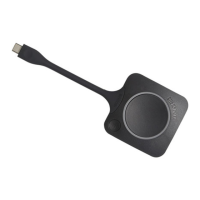
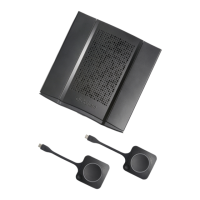
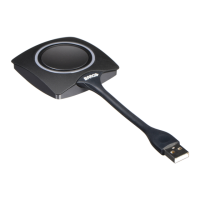
The ClickShare Button captures the audio output of the user’s laptop and sends it to the Base Unit together
with the video signal. The audio can be output at line levels from the mini jack socket (3.5mm), TOSLINK
socket or via the HDMI connector (can be set in the configurator).
It is up to the user to decide whether or not to send the audio signal together with the video signal. The user
can decide this by using the same tools as he would to control the laptop’s speakers or a headphone: the
audio controls of the operating system or the physical buttons on the keyboard of their laptop (mute/unmute,
lower volume, higher volume).
There will be synchronization between the audio and video signal when the user is sharing content.
About content audio (speakerphone connected)
The content audio captured on the user’ laptop is transmitted via the sharing Button to the Base Unit and is
send to USB port with speakerphone connected.
Audio via HDMI (no speakerphone connected)
When your display is connected via HDMI and it supports audio, a separate audio connection is not
necessary. The audio signal is sent together with the video signal to the display.
When USB speakerphone is attached to the Base Unit, this will output all audio. Even if separate audio system
is attached.
How to connect separate audio
1. When using the analog output, connect an audio cable with mini jack (3.5mm) into the analog audio output
of the Base Unit.
When using the digital output, connect an fibre optical cable with TOSLINK connector into the digital audio
output of the Base Unit.
2. Connect the other side to the meeting room's sound system.
Audio output needs to be selected in the Configurator, for more info, see “CX-50 Gen2
Configurator”, page 77
.
Sound is not sent out
In some Windows environments sound is not sent out. This can be solved as follow (depending on your
Windows version):
E.g. for Windows 7:
1. Right click on the sound icon in the system tray and select Default device. The Sound window opens.
2. Select Speakers ClickShare, select Set default and click Apply.
E.g. for Windows 10
1. Click on the sound icon in the system tray and click on the arrow up to open possibilities.
2. Select the desired device.
CX-50 Gen2 Installation



 To Next Page