4. Operation
4.4.3 Diagnostics
Introduction
1. Select the tab Diagnostics.
2. Press Refresh to make sure you get the most recent data.
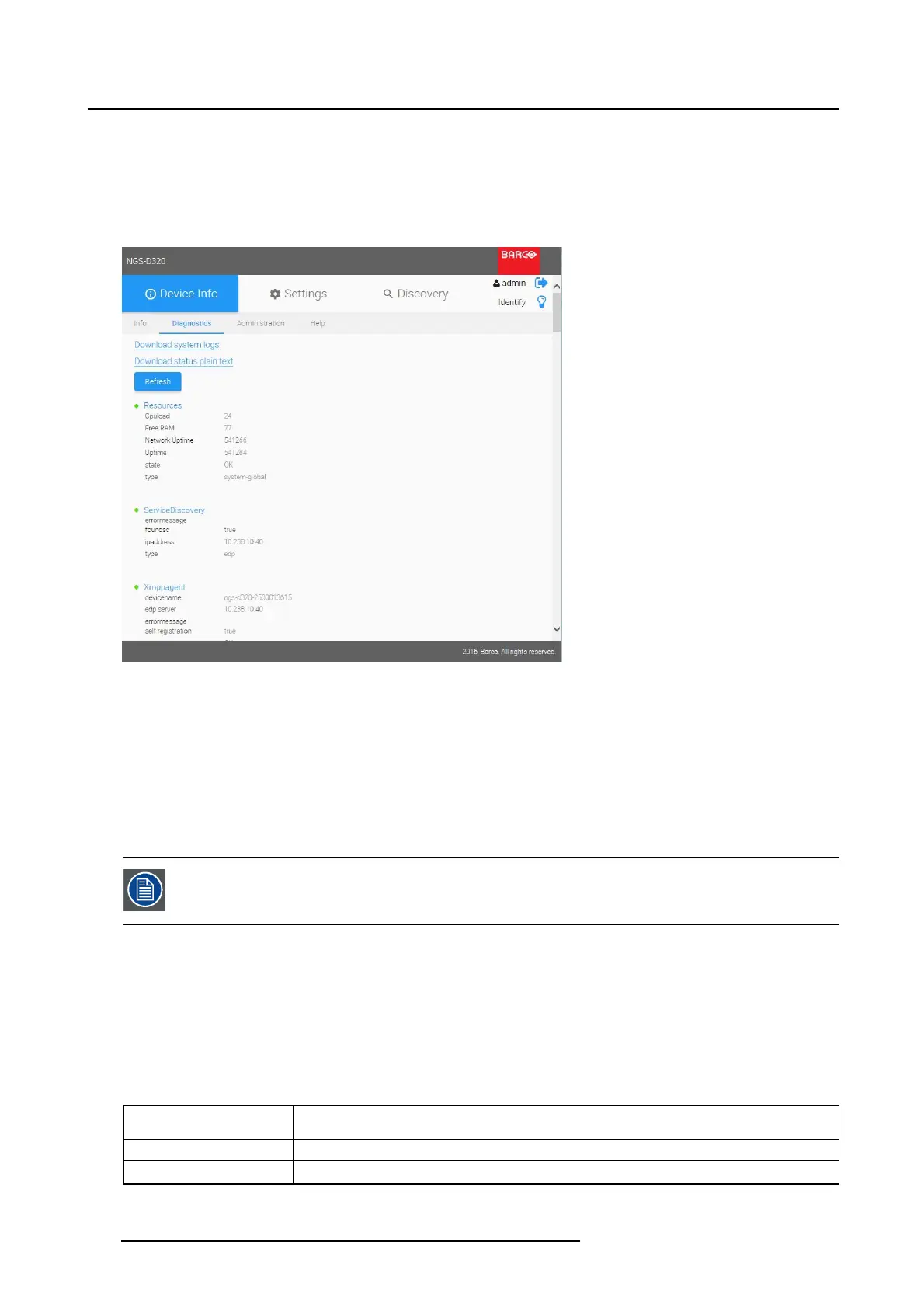
Image 4-9
Device Info _ Diagnostics
The Diagnostics page provides real-time detailed diagnostics information of the actual device status.
This information can be useful during configuration and troubleshooting.
Download system logs
1. Press the link Download system logs to start downloading a “log.txt” file to your system.
2. Open the “log.txt” file. It provides a detailed technical status log of the device. The information in this
log can be useful for troubleshooting, or can be requested by Barco personnel during support.
Log files are reset after a reboot.
Download status plain text
1. Press the link Download status plain text to start downloading a “diagnostics.txt” file to your system.
2. Open the “diagnostics.txt” file. It provides the device status overview in a plain text format.
Refresh button
1. Press the Refresh button before reviewing the diagnostics page, to ensure the latest up-to-date device
info is shown.
2. Status overview:
Resources
general device resources (CPU, memory, uptime)
ServiceDiscovery information on the system controller (managed mode only)
XMPPagent
status of the system controller communication channel (managed mode only)
28 K5903129 NGS-D320 29/09/2016



 To Next Page