EasyManua.ls Logo

Barco NIO 5MP - User Manual

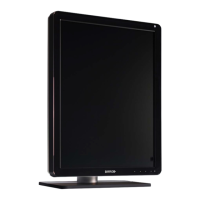
Barco NIO 5MP
99 pages
Print Icon
To Next Page IconTo Next Page
Loading...
Installation & User Manual
Nio 5MP

Other manuals for Barco NIO 5MP

Questions and Answers

  • J
    Jason BassAug 10, 2025
    How to adjust grayscales on Barco Monitor?
    • J
      Jason RothAug 10, 2025
      To adjust the grayscales on your Barco Monitor, set the Display Function to DICOM using the NioWatch software. Additionally, if you've installed the driver software with an inappropriate selection of Palette Settings (Static Gray with or without System Colors), reinstall the driver software, choosing a different setting for Palette Settings.
  • H
    Heather JonesAug 19, 2025
    What to do if my Barco Monitor screen remains black?
    • C
      Charles SnowAug 20, 2025
      If your Barco Monitor screen remains black, there are several potential solutions. First, ensure you have followed the installation procedure detailed in the manual. If the LED at the front of the monitor is orange, the display is in standby mode. Check in the Windows Display Properties to confirm that the display controller video heads are attached; otherwise, there will be no image. Finally, the external power supply might be defective.
  • B
    Brianna DennisAug 29, 2025
    Why does my Barco NIO 5MP Monitor image exhibit noise or interference?
    • C
      Cesar PriceAug 29, 2025
      Noise or interference in your Barco Monitor's image could stem from a few sources. The video cable might be of poor quality, or the DVI video cable may not be firmly connected to the PC or the display. Also, if analog video is selected, the display may require Phase and Frequency adjustments.

Summary

Display Controller Information

Minimum System Requirements

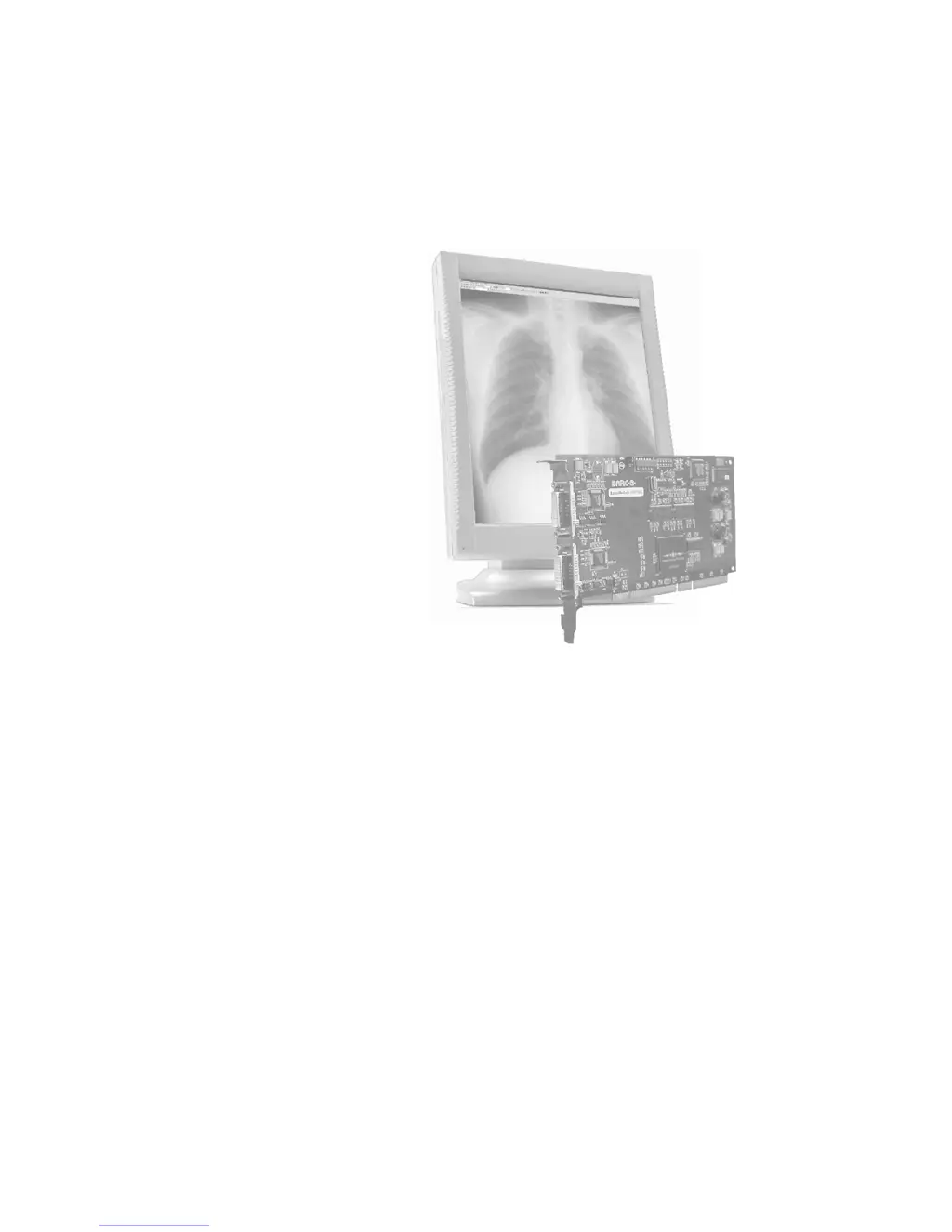
Lists the minimum hardware and OS specifications for the display controller.

BarcoMed Nio Controller Features

Outlines the key features of the display controller, such as dual head and bit performance.

Supported Display Controller Resolutions

Lists the resolutions supported by different BarcoMed Nio display controller models.

Controls and Connectors

Front Panel Controls

Identifies and describes the power LED and control wheel on the front.

Installation Procedures

Installation Precautions

Essential safety and handling guidelines prior to installation.

Display Controller Installation Steps

Step-by-step instructions for installing the graphics controller card.

Display Unit Setup and Preparation

Guide for unpacking and preparing the display unit for use.

Connecting the Power Supply

Detailed steps for connecting the display to its power supply.

Video Signal Connectivity

Instructions for connecting the display to the computer using DVI cables.

Software Installation

Installing Display Drivers and Software

Procedure for installing the BarcoMed display drivers and software.

Display Performance Optimization

System Operation

BarcoMed Control Panel Configuration

Guide to configuring display settings via the Windows Control Panel.

NioWatch Software Usage

Instructions for using the NioWatch utility for display optimization.

Basic Display Functions

Covers stand-by switching and navigating the on-screen display (OSD).

Troubleshooting Guide

Common Problems and Solutions Table

A reference table of issues and their resolutions.

Setting Display Resolution in Windows

Step-by-step guide to adjusting display resolution in Windows.

Display Driver Reinstallation and Update

Instructions for reinstalling or updating the display driver.

Uninstalling Display Drivers and Software

Procedures for removing drivers and NioWatch software.

Technical Specifications

Barco NIO 5MP Specifications

General IconGeneral
Display TypeLCD
Resolution2560 x 2048
Color Depth10-bit
Pixel Pitch0.165 mm
Aspect Ratio5:4
Native Resolution2560 x 2048
Grayscale Depth10-bit
Screen Size21.3 inch
Active Screen Size (Diagonal)21.3 inches
Response Time25 ms
Input SignalsDVI
Display ConnectorsDVI-D, DisplayPort
Power SupplyInternal
Medical ComplianceCE, CCC, RoHS
Viewing Angle178° horizontal and vertical

Related product manuals