60 Bedrock SMxx operating manual © Bedrock Audio BV, 2019
61
The backlight time-out makes the backlight automatically switch off if the touch screen has
not been touched for a while. This time-out can be set between 30 seconds and 30 minutes,
or the backlight can be set to never turn off at all.
The backlight time-out option saves a considerable amount of battery pow-
er. But keep in mind that it will cause the screen to black out without turning
the device off. Don’t forget to turn the device off when you finish working;
the fact that the screen is dark does not necessarily mean that the device is
turned off. To turn the backlight back on again after a time-out, press the
power button. The touch screen will not respond to presses while the back-
light is turned off, but measurements will continue to run.
With the exception of some versions of the SM50, the brightness of the backlight can be
adjusted. This gives you the option to save power when using the device in conditions with
low ambient light levels (indoors).
Audio recording and text annotations.
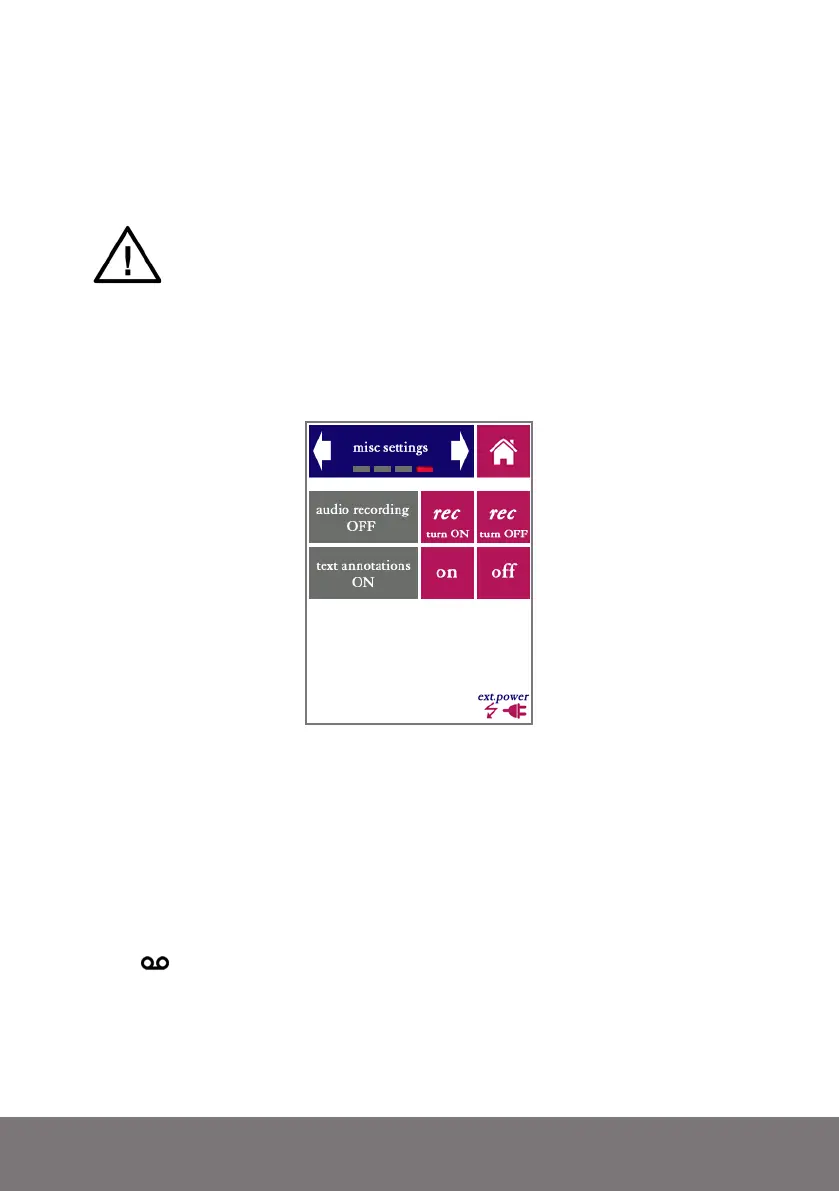
The fourth screen of the settings module (“misc settings”) contains two settings: audio
recording and text annotations.
With audio recording set to ON, the audio of each and every measurement is recorded onto
the internal storage of the SM50 in .wav format, calibrated to 150 dB SPL at full scale. Note
that this uses up significant amounts of storage space. Once enabled from the settings tab,
audio will be stored whenever saving a measurement from any module, until audio record-
ing is turned off again from the settings menu. If audio is being recorded, a tape recorder
symbol ( )will be shown above the progress meter during measurements.
With “text annotations” set to ON, the user is prompted to type a short text note whenever
a measurement is saved. After pressing the “save” button (in any of the modules), a text
keyboard will appear.



 To Next Page