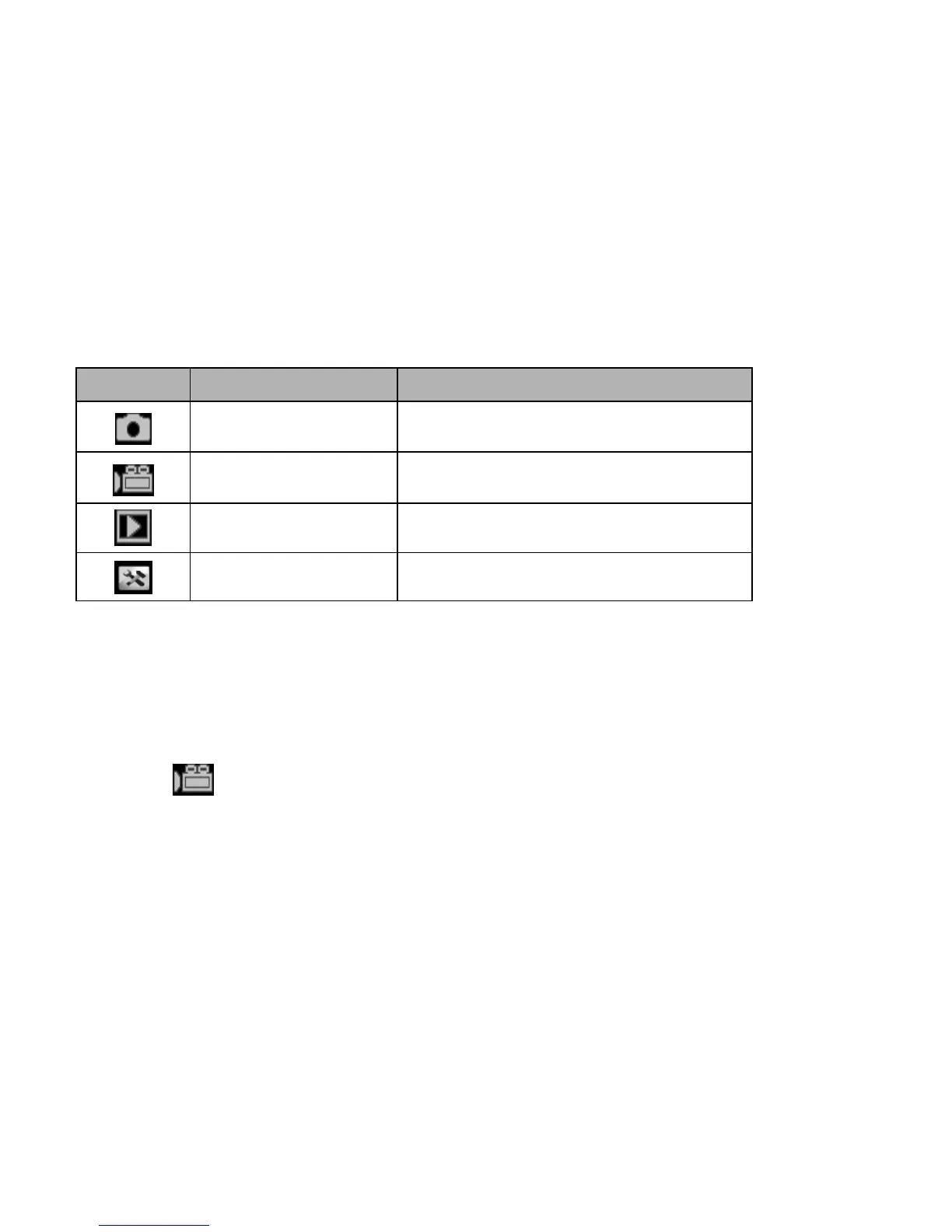
Change the recording mode
There are four modes in this camcorder. Press the Green Touch button on
the upper left corner of the screen to change the mode, each time the
<Playback\Mode> button pressed, the mode is changed.
Note: Press the <Playback\Mode> button to enter Capture\ Playback\
Setup mode\ Video in turn.
Recording a video clip
1: Turn on the camcorder and set the camcorder to video recording mode,
the icon appears on the LCD.
2: Zooming:
Press the <Zoom in>or <Zoom out > to zoom in or zoom out the subject.
3: Press the <REC\Shutter> button to start recording.
4: Press the OK button to pause and press it again to continue.
5: Press the <REC\Shutter> button again to end the recording. The video
camera will stop recording automatically when memory full.


 To Next Page