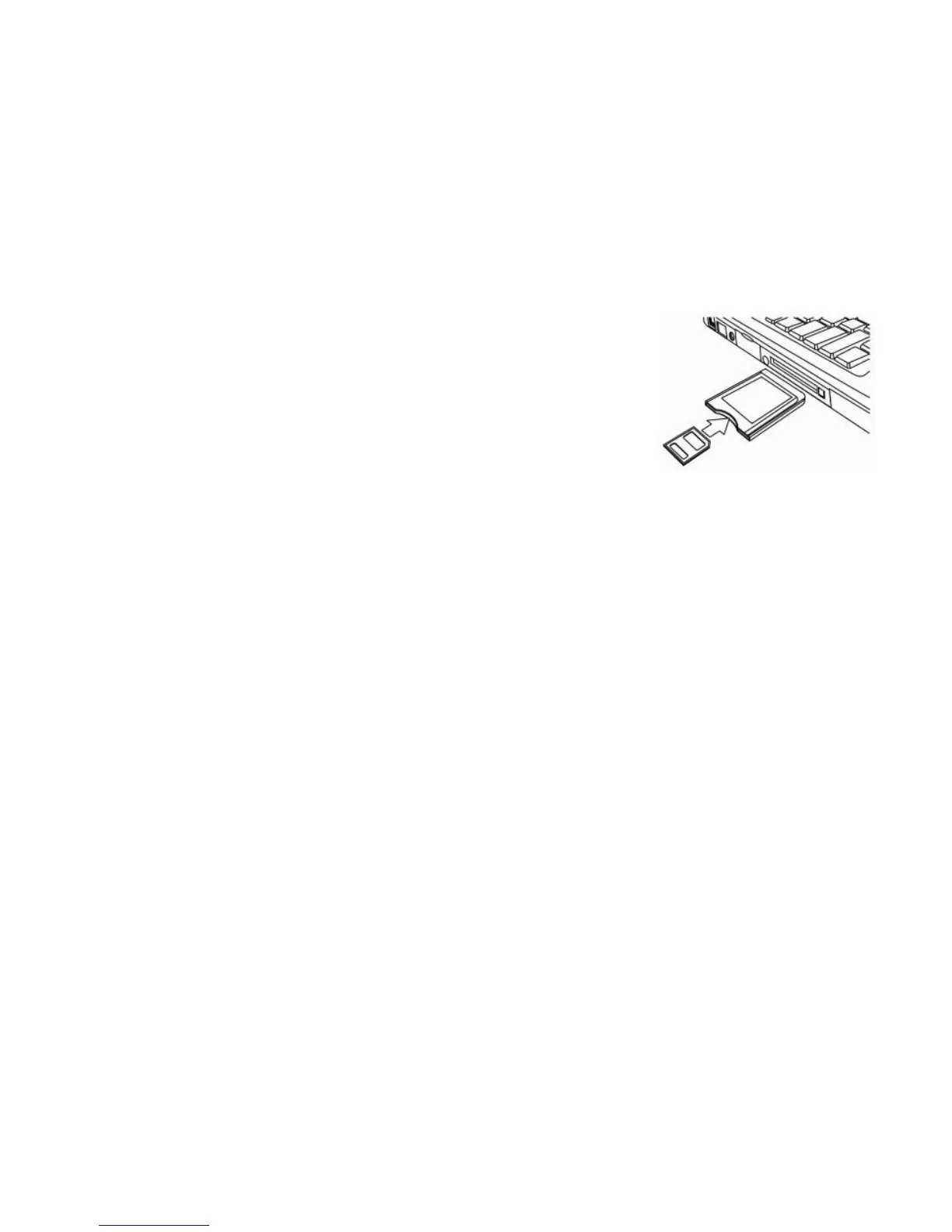
By inserting the memory card into a card reader
By connecting the camera to a PC using the supplied Multi-USB cable.
Using a Card Reader
1: Eject the memory card from the camcorder and
insert it into a card reader which connected to a
computer.
2: Open [My Computer] or [Windows Explorer] and
double-click the removable disk icon that represents
the memory card.
3: Copy images from the memory card.
Connecting the Camcorder to a PC with the USB Cable
1: Connect the supplied USB cable to the computer's USB port and turn on
the camcorder. An icon “Mass storage” appears on the screen; there will be
no content if no SD card inserted in the camcorder.
2: Open [My Computer] or [Windows Explorer]. A "Removable Disk"
appears in the drive list. Double-click the "Removable Disk" icon. The files
stored on the camera are located in the folder named "DCIM".
3: Copy the photos or files to your computer.
Note: If you want to enter PC CAM mode, please turn off the camcorder
first, and then connect the camcorder to the computer with the supplied
USB cable, hold and press the <REC\Shutter> button for a few seconds
and turn on the camcorder at the same time, an icon "PC CAM" will appear


 To Next Page