Menu operations40
System settings
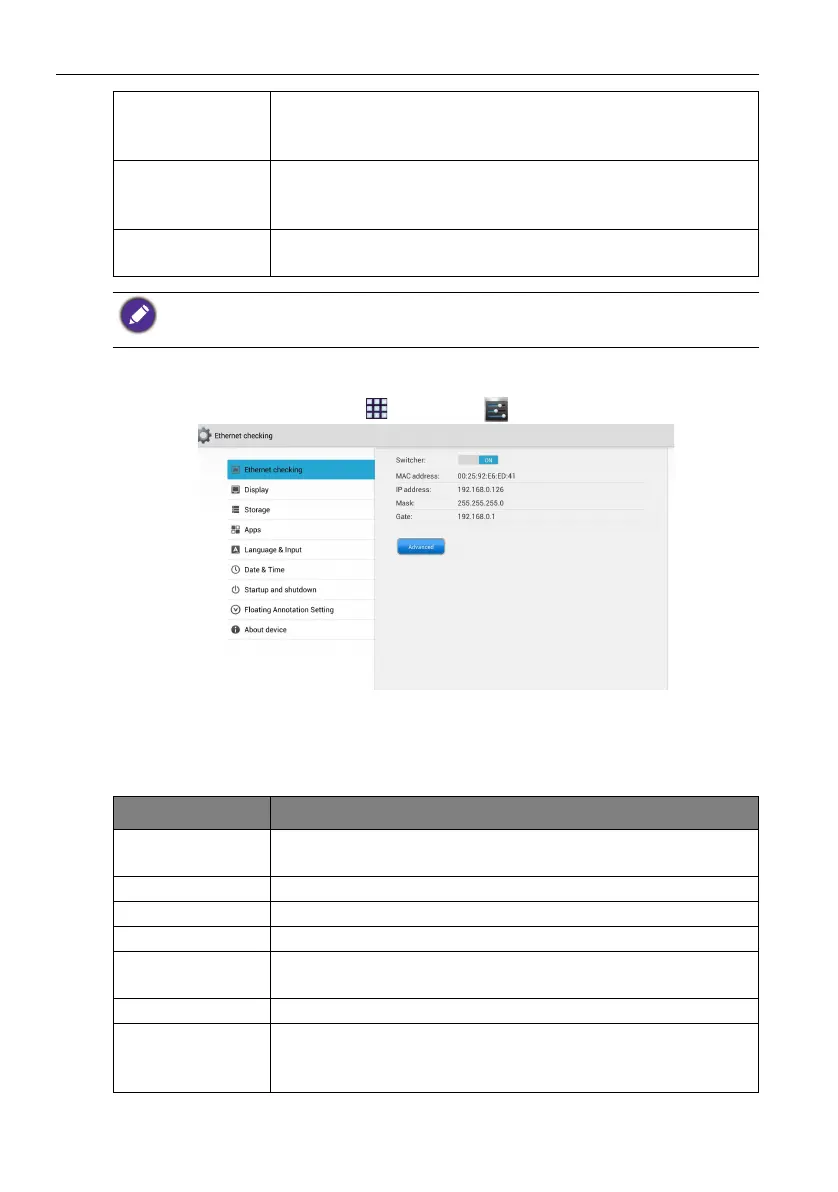
On the home screen, click Apps ()>Settings ( ) to enter system settings.
• Press 5/6/3/4 on the remote control and press ENTER on the remote control to
confirm or directly click an item.
• Press BACK on the remote control or click a blank area outside the menu to exit the
menu.
IR Lock Press ENTER on the remote control or click the switch to lock
or unlock the remote control IR sensor on the front panel of the
display.
Pixel Shift Press ENTER on the remote control or click the icon to set a
pixel shift preventing from image retention (RP552&RP552H
only).
Power Schedule Press ENTER on the remote control or click the icon to set a
power schedule.
• The Key Lock and IR Lock functions cannot be enabled at the same time.
• For image retention, please see Notes on the LCD panel of this display on page 2 for more
information.
Options Description
Ethernet
Checking
Click to view current network status and network preferences of
the display.
Display Click to set visual preferences on Font size and Wallpaper.
Storage Click to show empty and occupied space.
Apps Click to view memory consumption of apps in Android.
Language &
input
Click to set Language and Keyboard & Input Methods in
Android.
Date & time Click to set date, time, and their formats in Android.
Startup and
shutdown
Click to set the Startup channel, Standby after startup, and
Timer switch. Reminders includes boot time and off time.
Schedules can be made by choosing the days of the week.


 To Next Page