Basic operations 29
Updating software
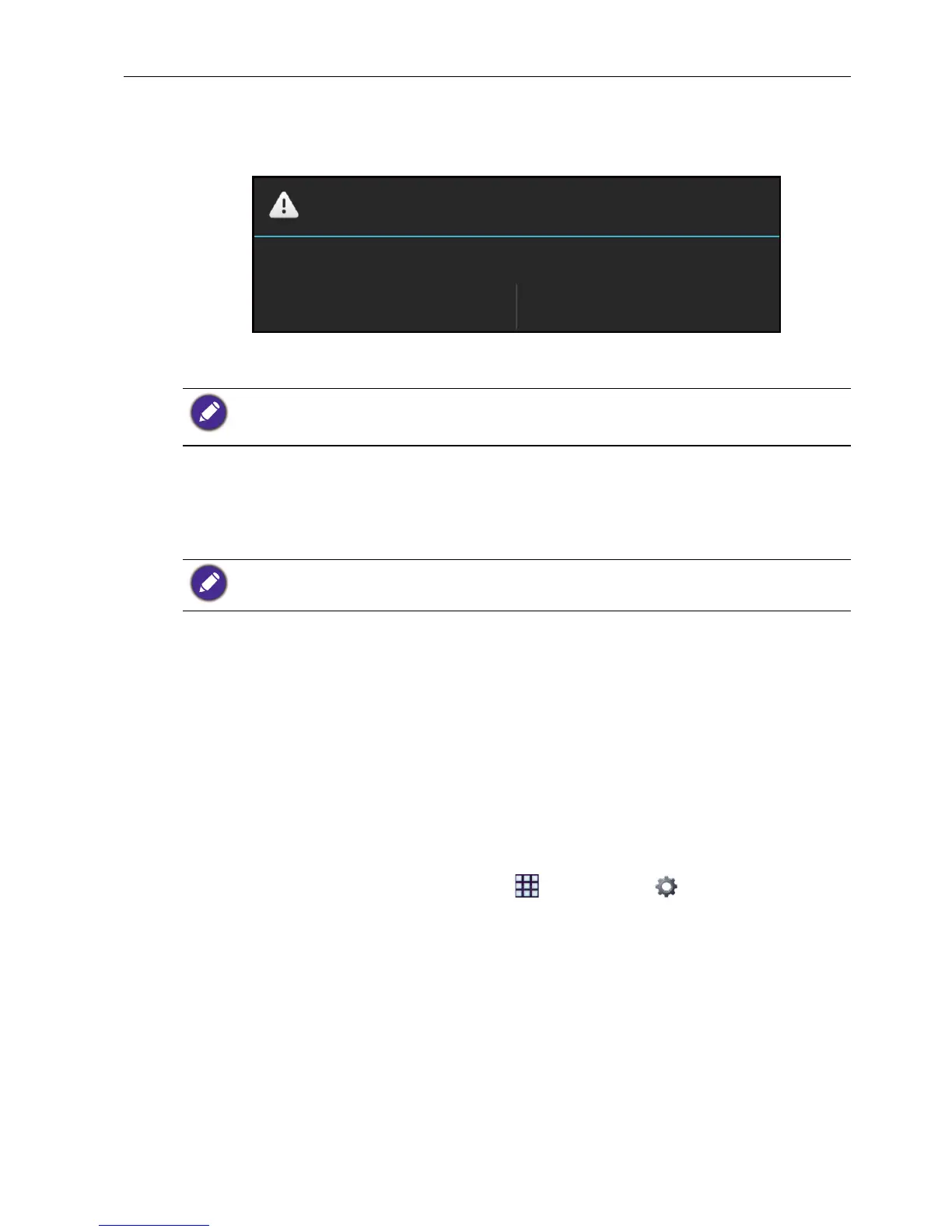
Whenever a new version of software is available, the system will automatically detect the
update and will prompt you to download it every time you turn on the display.
If you want to update the software, select Yes and press the OK button on the remote
control. Or your can skip this step and update the software later.
Restoring to the default settings
If you encounter problems with your display, you can restore all parameters to the
factory default settings.
There are two methods that can be used to reset your display.
Via OSD menu
1. Press the MENU button to open the OSD menu.
2. Press the or button to select Setting and press the OK button.
3. In the Setting menu, press the or button to select Recall.
4. A confirmation appears on the screen, select Yes to reset your display.
Via Android OS
1. Press the INPUT button on the remote control and select ANDROID.
2. On the home screen, select All Apps () > Settings () > Backup /
Update.
3. In the Backup / Update menu, select Restore to Factory Default.
4. A confirmation appears on the screen, select Yes to reset your display.
Adjusting audio volume level
Press oron the control panel or VOL- / VOL+ on the remote control to adjust the
volume.
• Software update process may take some time to complete.
• During the update process, do not turn off the device or disconnect the Internet connection.
Any interruptions during the software update process may permanently damage your display.
Before performing a factory reset, make sure to back up your important data and files.


 To Next Page