Working with Android OS38
EZWrite 2.0
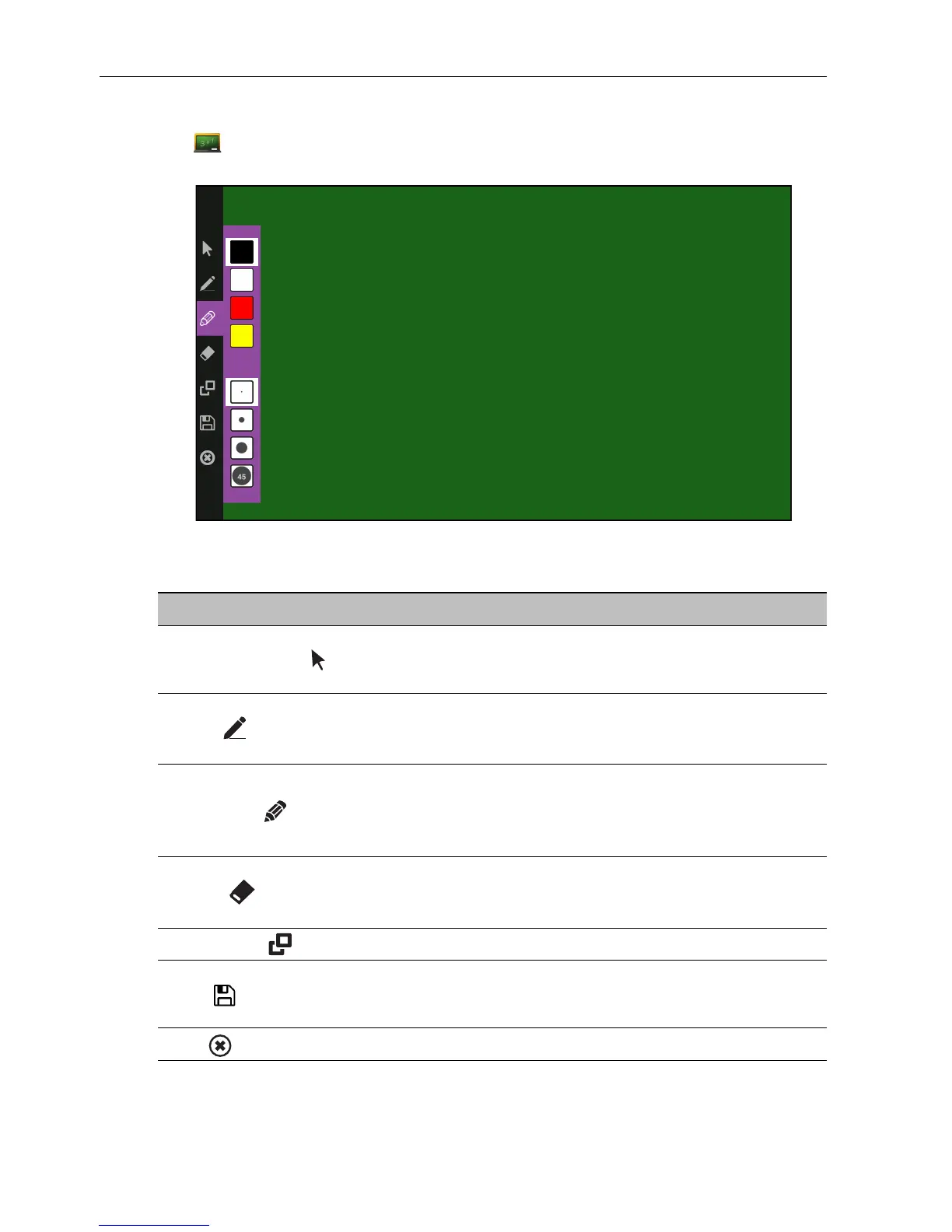
Tap to launch EZWrite 2.0. With this application, you can use the annotation tools
to draw on the screen or edit the document.
Tap the icon on the left panel to active its function. Tap and hold the icon to access more
option.
Function Description
Operation Mode ( )
Tap to switch to All Apps and open another application
(such as WPS Office). Then open a file and use the
desired annotation tool to edit the document.
Pencil ( )
• Tap to draw freeform or curved line.
• Tap and hold the icon for 3 seconds to set the pen color
and thickness.
Highlighter ( )
• Tap to highlight the selected text or draw a transparent
line on the screen.
• Tap and hold the icon for 3 seconds to set the
highlighter color and thickness.
Eraser ( )
• Tap to erase the areas of your picture.
• Tap and hold the icon for 3 seconds to set the eraser
thickness or select All to clear the screen.
Background ( )
Tap to change the background color.
Save ( )
Tap to save the file. This option is only available when you
start editing the file. Make sure to plug the USB disk drive
first before saving the working file.
Exit ( )
Tap to exit the application.


 To Next Page