Operation 39
English
Locking control keys
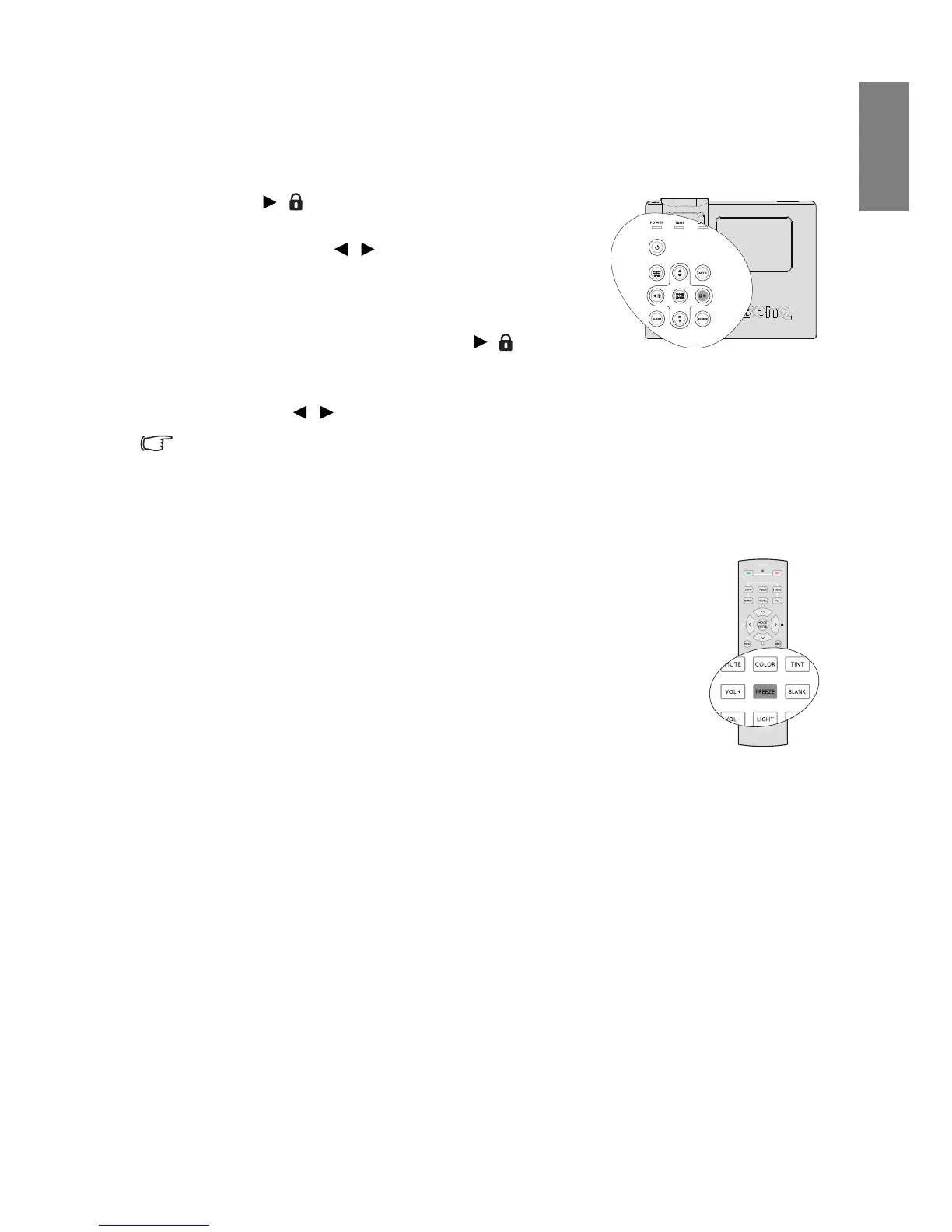
With the control keys on the projector locked, you can prevent your projector settings from
being changed accidentally (by children, for example). When the Panel Key Lock is on, no
control keys on the projector will operate except POWER.
1. Press / on the projector or go to the
SYSTEM
SETUP: Basic > Panel Key Lock menu, and select
On by pressing / on the projector or remote
control.
2. A confirmation message displays. Select Yes to
confirm.
To release panel key lock, press and hold / for 3
seconds on the projector.
You can also use the remote control to enter the SYSTEM SETUP: Basic > Panel Key
Lock and press / to select Off.
• Keys on the remote control are still in use when panel key lock is enabled.
• If you press POWER to turn off the projector without disabling panel key lock, the
projector will still be in locked status the next time it is turned on.
Freezing the image
Press FREEZE on the remote control to freeze the image. The word
'FREEZE' will display in the upper left corner of the screen. To release
the function, press any key on the projector or remote control.
Even if an image is frozen on the screen, the pictures are running on the
video or other device. If the connected devices have active audio output,
you will still hear the audio even though the image is frozen on screen.


 To Next Page