Handheld Pulse Oximeter
25
Environment Setting of Equipment
Step2) You can use UP/DOWN ( / ) button for the item moving, and ENTER ( ) button
for your choice.
Step3) You can return automatically to the SETUP screen if you choose the mode by ENTER button.
And if you want to cancel the selection and return to the SETUP screen, you can go back to
the SETUP screen with ESC ( ) button.
Environment Setting of Equipment
26
PalmCare plus
Step3) You can return automatically to the SETUP screen if you choose the mode by ENTER button.
And if you want to cancel the selection and return to the SETUP screen, you can go back to
the SETUP screen with ESC ( ) button.
5.8 Information of Palmcare plus
Palmcare plus displays the simple information of this equipment on the LCD like the manufacturer
of Palmcare plus, Program version/name and etc.
Step1) You can check the information of Palmcare plus by pressing the ENTER button ( ) after
making a reverse the item “7.Device Info”.
Step2) You can use UP/DOWN ( / ) button for the item moving, and ENTER ( ) button
for your choice.
◆Brightness : LCD Brightness auto control setting.
i. ON : If there is no key input, do setting Back Light is controlled automatically after 30
seconds (Auto Dim out).
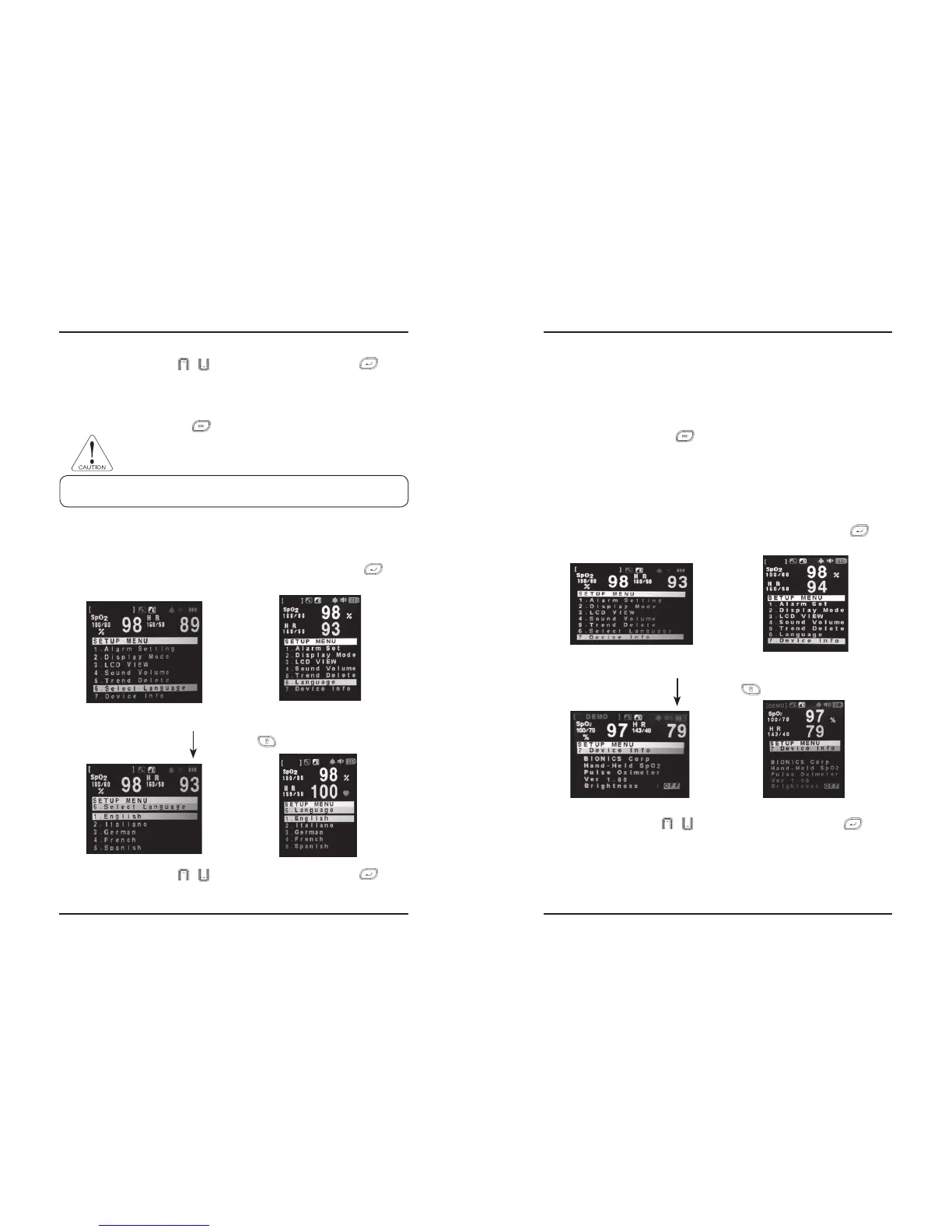
5.7 Select Language
This item is used to select language of PalmCare plus.
Step1) You can enter to the Select Language setting mode if you press ENTER button ( ), after
making a reverse the item “6.Select Language” on the environment setting (SETUP) screen.
Step2) You can use UP/DOWN ( / ) button for the item moving, and ENTER ( ) button
for your choice.
◈ Please take a note that all of the trend data saved in the inside of Palmcare can be deleted, if
you select “YES”
Press MENU ( ) Button.
Making a reverse the item “6. Select Language” by pressing UP/DOWN button.
Press MENU ( ) Button.
Making a reverse the item “7.Device Info” by Up/Down button.
i. “1.English Lan” : Select English
ii. “2.French Lan” : Select French
iii. “3.Germeny Lan” : Select Italian
vi. “4.Italian Lan” : Select Italian
v. “5.Spain Lan” : Select Spain
CAUTION


 To Next Page