Chapter 3: UEFI BIOS & Soware | 27
B760MZ-E PRO | B760MX-E PRO | B760MH-E PRO | B760MP-E PRO
Chapter 3: UEFI BIOS & Soware
3.1 UEFI BIOS Setup
• The BIOS Setup program can be used to view and change the BIOS sengs for the
computer. The BIOS Setup program is accessed by pressing the <DEL> key aer the
Power-On Self-Test (POST) memory test begins and before the operang system boot
begins.
• For further informaon of seng up the UEFI BIOS, please refer to the UEFI BIOS Manual
on our website.
3.2 BIOS Update
The BIOS can be updated using either of the following ulies:
• BIOSTAR BIO-Flasher: Using this ulity, the BIOS can be updated from a le on a hard
disk, a USB drive (a ash drive or a USB hard drive), or a CD-ROM.
• BIOSTAR BIOS Update Ulity: It enables automated updang while in the Windows
environment. Using this ulity, the BIOS can be updated from a le on a hard disk, a USB
drive (a ash drive or a USB hard drive), or a CD-ROM, or from the le locaon on the
Web.
BIOSTAR BIO-Flasher
Note
»
»
This ulity only allows storage device with FAT32/16 format and single paron.
»
»
Shung down or reseng the system while updang the BIOS will lead to system boot failure.
Updang BIOS with BIOSTAR BIO-Flasher
1. Go to the website to download the latest BIOS le for the motherboard.
2. Then, copy and save the BIOS le into a USB ash (pen) drive.(Only supported FAT/FAT32
format)
3. Insert the USB pen drive that contains the BIOS le to the USB port.
4. Power on or reset the computer and then press <F12> during the POST process.
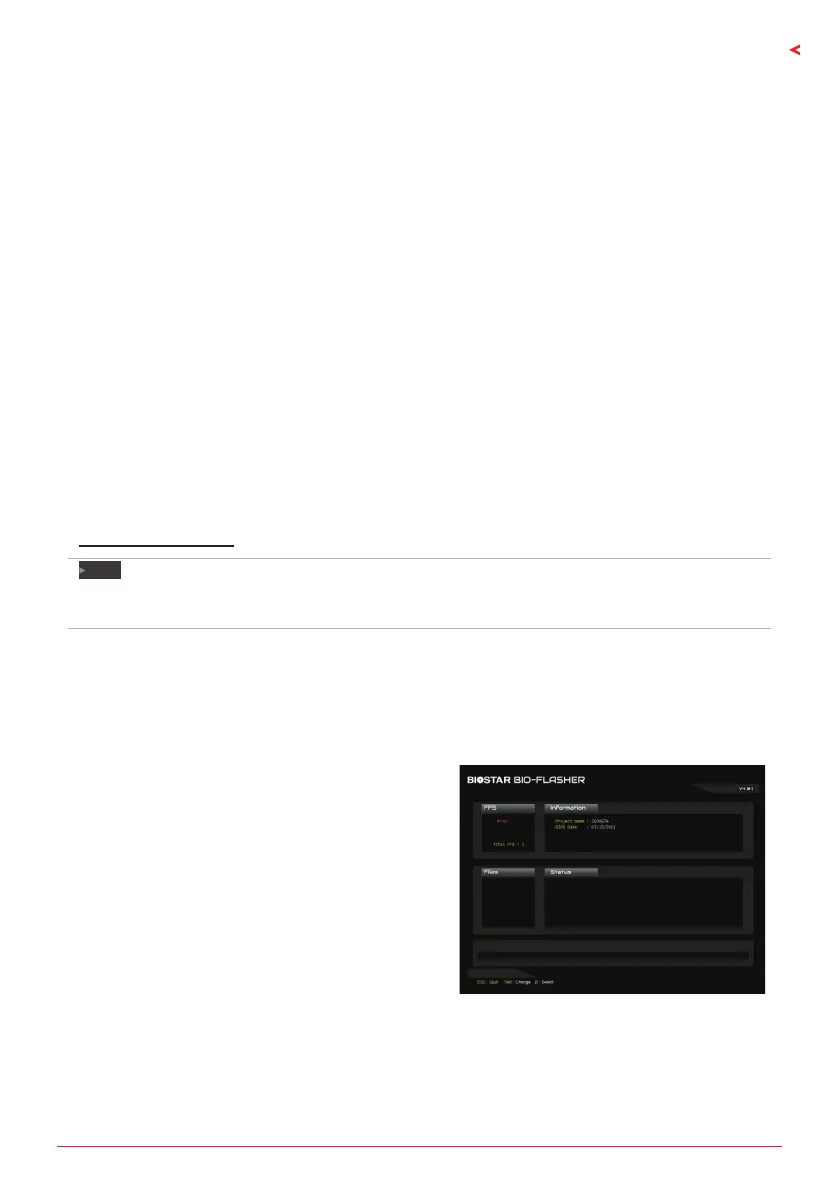
5. Aer entering the POST screen, the BIO-FLASHER
ulity pops out. Choose <fs0> to search for the
BIOS le.






 To Next Page