machine starts printing.
After the print is finished, the nozzle and heated bed will
cool down and you can remove the print.
6.2 Print via WiFi
Control the printer using a web interface by connecting to
the corresponding IP address.
Step 1
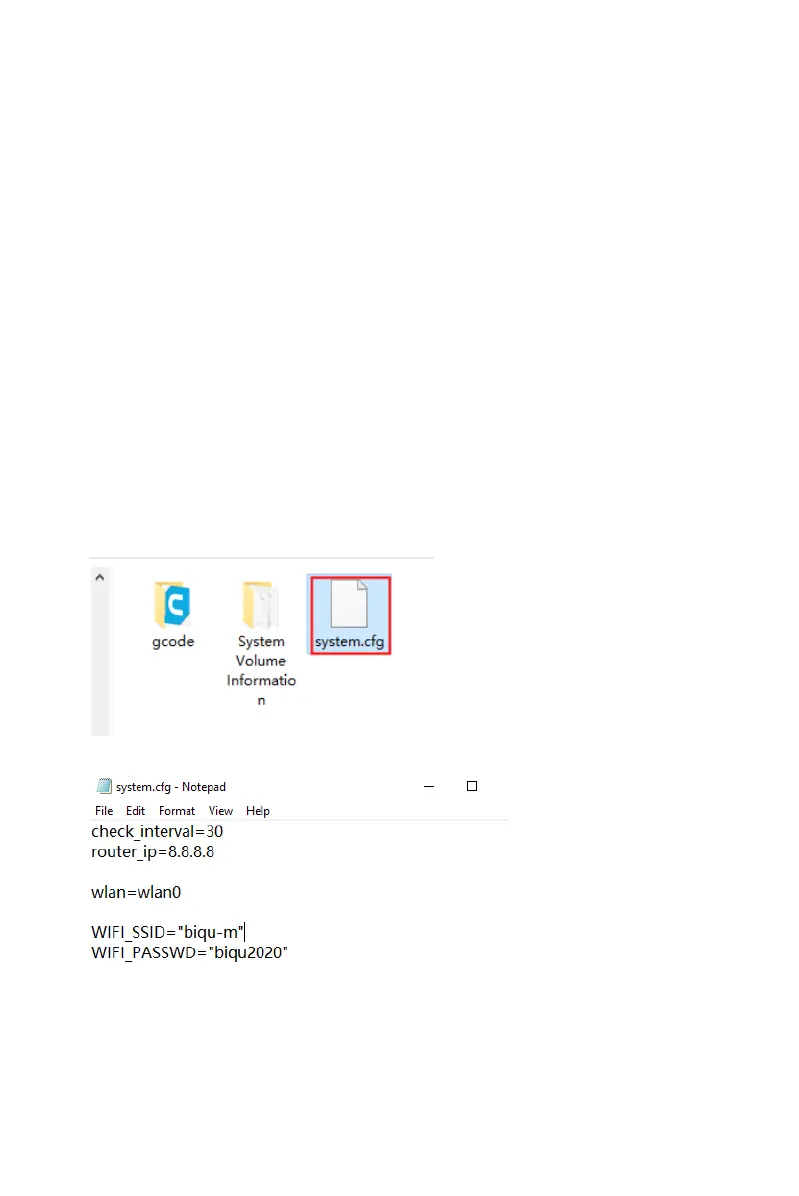
Set the WIFI ssid and password. (Note: your control device
and the printer need to be connected to the same WiFi).
Make sure the machine is powered down, remove the
microSD card and modify the system.cfg file in your
computer with the Windows default notepad:
Set up the WiFi ssid and password:



 To Next Page