2. If necessary, enter your device password. Your device and media card appear as drives on your computer.
3. Go to the files or folders that you want to copy.
4. Drag and drop the files or folders into the desired folders.
5. Before disconnecting your device, on your computer, right-click your device's drive. Click Eject.
Change how your device connects to a computer
You can connect your device to a computer using USB in the following ways:
• Connect as a media device using MTP to transfer most file types between your device and a Windows or Mac computer
using the BlackBerry File Transfer application.
• Connect as a camera using PTP to transfer photos using camera software and to transfer
files between your device and
a computer that doesn't support MTP.
• Connect as a charger to charge your device without transferring any data or files.
• Connect with a mounted media card to transfer files between your device's media card and a computer.
To change how your device connects to a computer, do the following:
1. Swipe down from the top of the screen once using two fingers, or twice using one finger.
2.
Tap > Storage > > USB computer connection.
3. Select the checkbox next to the type of connection that you want to use.
4. Before disconnecting your device, on your computer, right-click your device's icon, and then click Eject.
Connections
Wireless connection icons
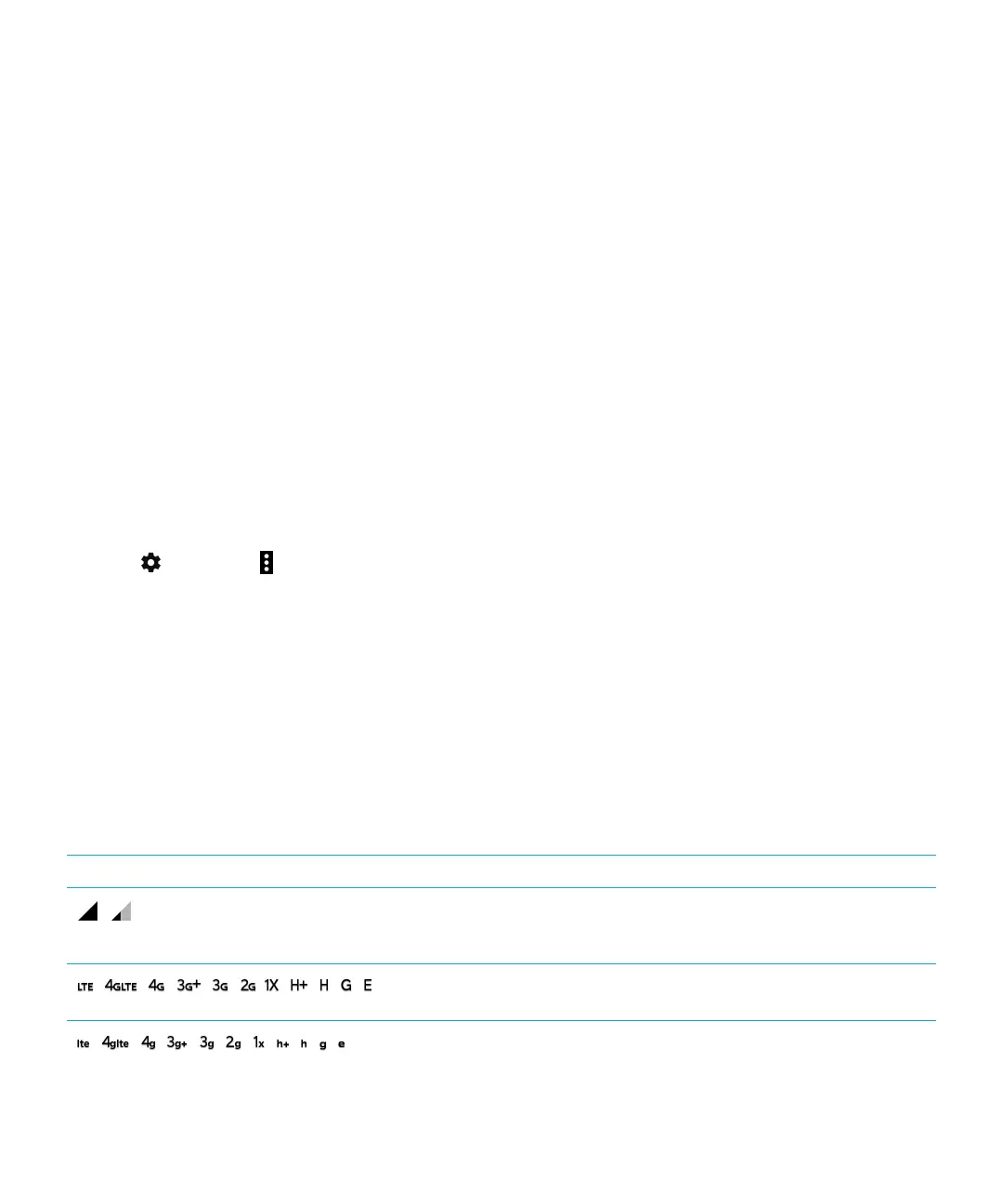
The following icons might appear at the top of your screen to indicate the wireless coverage level that your device currently
has.
Icon Description
The amount of solid color indicates the strength of the
mobile signal. If the signal is weak, your device might use
more power to try to maintain the connection.
Your device is connected to the mobile network and can
access all of the features of your mobile network plan.
Your device is connected to the network type shown, but
the network functionality is limited. You might be able to
User Guide Settings
71






 To Next Page