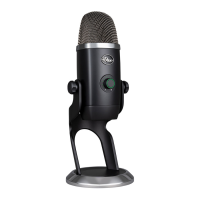
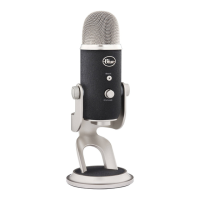
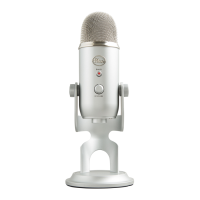
Mute button/status light • Press this button to mute the output from the microphone. When the mute button is
ashing, the microphone is muted and no signal will be sent to the computer. To end microphone muting, simply press
the button again. The status light will illuminate solid during normal operation to indicate proper function.
Headphone volume control • Easily control the volume of Yeti’s headphone output by adjusting the volume knob
— no need to click through software menus to nd the right headphone volume.
Headphone output • Yeti includes a standard 1/8” (3.5mm) headphone jack for monitoring and playback. You can use
Yeti’s headphone output to monitor your microphone recording in real-time, without latency delays. Or, use the Yeti’s
headphone amplier to reproduce music, movies, or tracks from your computer with the incredible delity and detail
provided by the dedicated headphone amplier and high quality digital-to-analog converter.
USB connection • Yeti connects to your computer with one simple USB cable. Plug the mini USB (small connector) into
the USB port on Yeti, and plug the other end into an available USB port on your computer. To perform at its best, Yeti
should be plugged directly into a powered USB port, so avoid connecting through USB hubs or other USB multipliers.
5


 To Next Page