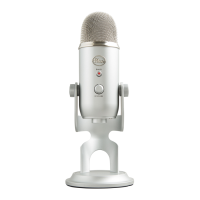
4. Select the “Recording” tab. Select the “Yeti Stereo Microphone” from the list.
From this screen, you’ll want to adjust the computer’s internal microphone gain (volume) settings. Select the “Proper-
ties” button, then select the “Levels” tab. As a starting point, set the microphone fader at about 80%. If you decide
you want to record something that is very loud, like a drum set, or a band practice, you will want to turn this setting
down. If you are recording something that may be quiet, like an interview with a person who speaks softly, you may
want to turn this setting up.
5. Select the “Playback” tab. Select the “Yeti Stereo Microphone” from the list.
From this screen, you will also want to adjust the computer’s Master Volume. As a starting point, set the computer’s
master volume to 100%. Once you’ve selected the Yeti as your output device, you can control headphone volume with
the volume knob on the front of the Yeti.
Also, from this screen, you will want to adjust the microphone monitoring volume. You can adjust this by moving the
fader labeled “microphone” to the left or to the right.*
7


 To Next Page