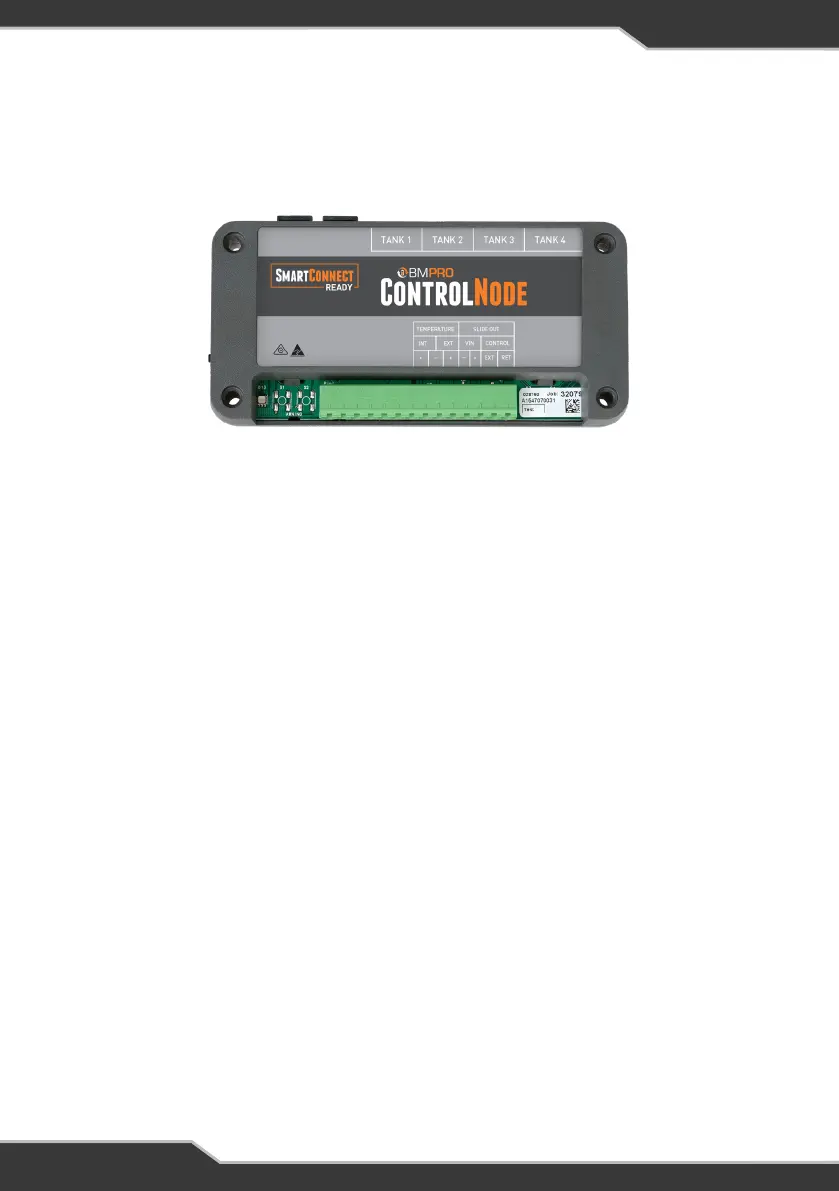
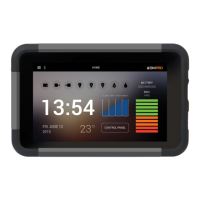
Figure 4: SmartConnect Screen
USING YOUR JHUB TABLET
PAIRING THE JHUB TABLET TO THE CONTROLNODE
The JHub Tablet will have been paired to the ControlNode at the Jayco dealership.
Once paired, Bluetooth connectivity between the JHub Tablet and ControlNode
will automatically occur whenever the JHub Tablet is on and charged and within
Bluetooth range of the ControlNode.
However, if you ever need to pair the JHub Tablet to the ControlNode:
1. Ensure that the ControlNode is connected to the J35.
2. Ensure that the J35 is powered ON
3. Ensure that the JHub’s Bluetooth is ON
4. Press the pairing button on the ControlNode. The LED will start
flashing green which means that you have 30 seconds to pair your JHub.
5. If the app is not automatically launched, launch the JHub app on your JHub
and press the “Scan” button and it will now search for the nearby ControlNode
devices. Once this is complete, a list of the available ControlNode devices ready
for connection will appear.
Note: Before starting a scan, the JHub App may request access to the device’s
location-always allow.
16. SmartConnect
SmartConnect allows you to integrate and monitor gas bottle, tyre and
temperature sensors.
10


 To Next Page