11
Keys or features that are greyed out are inactive.
Keys or features that are yellow are active and congurable.
Customise the start screen
To add a custom image to the start-up screen of the keyboard, follow these steps:
1) Plug in the USB stick containing the logo to be imported.
Note : only JPG and PNG les smaller than 2 MB are accepted.
2) On the Scorepad keyboard home screen, click on
3) Click on Technician menu (default password : 4934).
4) In the VARIOUS menu, select
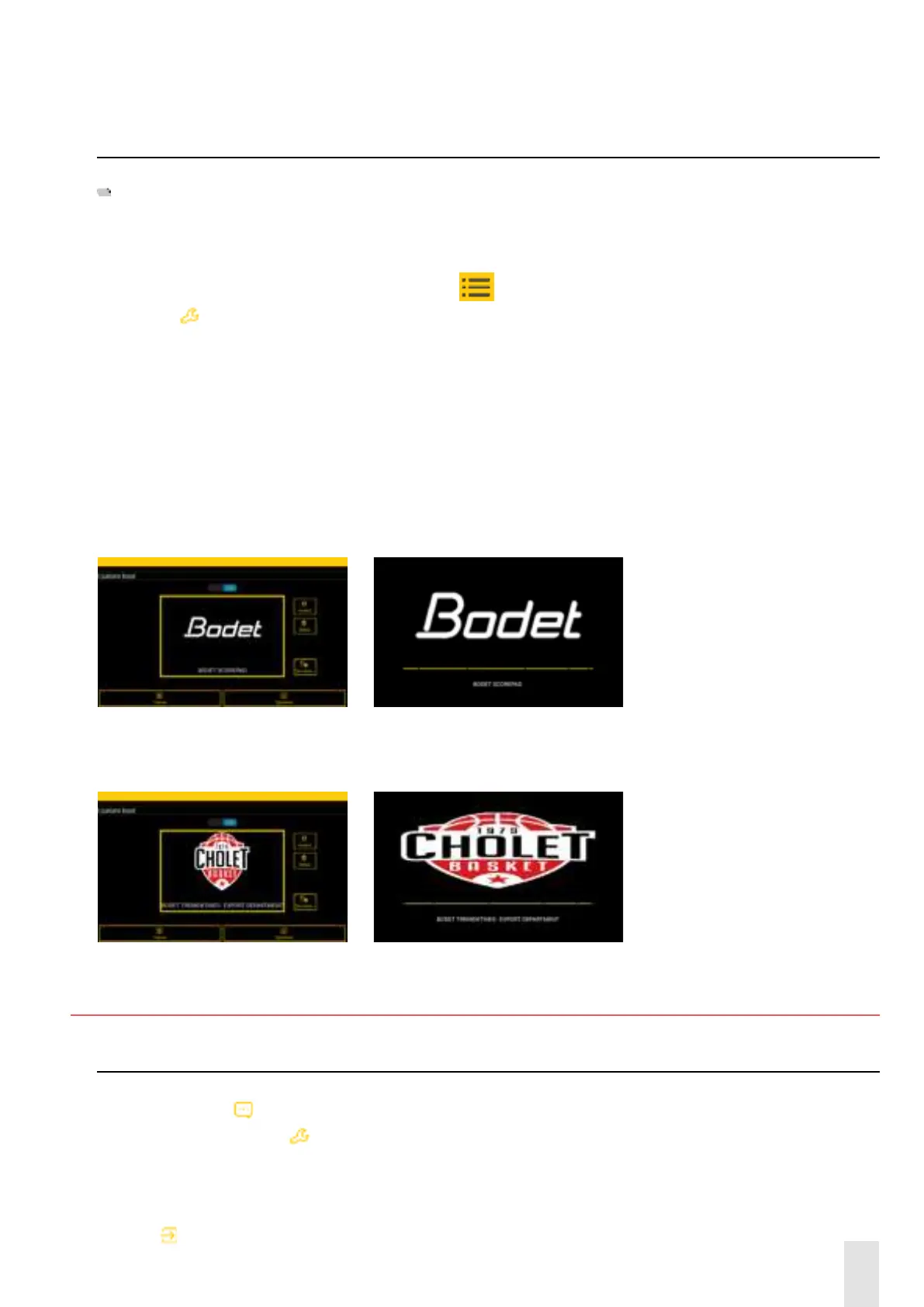
Custom Boot :
5) Enable the function with the ON/OFF button then click on Change,
Note : Rename allows you to change the text under the image (e.g. Welcome to BODET Scorepad).
6) Select the le to import (on the USB key) then click on OK then on Save.
7) Reboot the keyboard to see the change made.
Default display (if function enabled, if disabled : no logo display) :
Setup Menu : Display at start-up :
Customised display (function enabled) + welcome message changed :
Setup Menu : Display at start-up :
5. Menus
Welcome message (Home page)
1) Click
Message then select a message from the list displayed.
2) Edit the message with
.
This message will be displayed on scoreboards featuring an alphanumeric strip display or on video screens.
Launch this message:
3) Select the message
4) Click
Launch distribution


 To Next Page