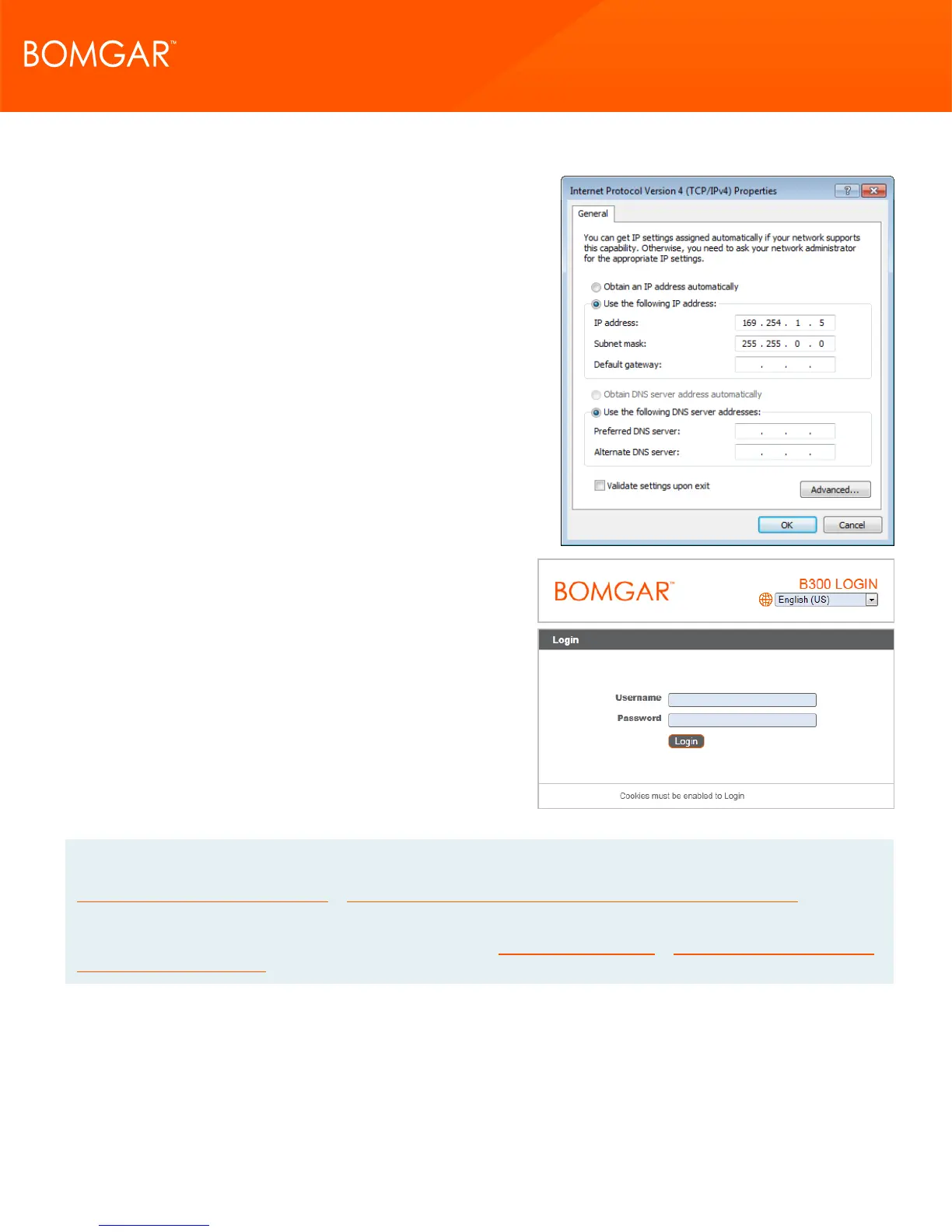
3. Enter 169.254.1.5 as your IP address and 255.255.0.0 as the
subnet mask. Be sure the Gateway and DNS fields are blank.
4. Launch a web browser and enter the address
https://169.254.1.1/appliance/login.ns in the URL address
field. If this fails, try alternately substituting ".2", ".3" and ".4" for
the last decimal in the address above. Load each of these
addresses separately until one responds. Enter the default
username and password and click Login.
Default Username: admin
Default Password: password
Upon initial login, you will be prompted to change your
appliance administration password.
Note: The Bomgar Appliance uses two administrative web interfaces, /appliance and /login, to isolate hardware administration
from user management. The /appliance interface is used to configure network settings and upgrade Bomgar software. See the
Bomgar Appliance Web Interface Guide at www.bomgar.com/docs/remote-support/getting-started/deployment/web. The /login
interface is not available until after Bomgar Technical Support builds the necessary software licensing package and this
package is installed through /appliance. Once installed, /login is used to manage users and workflows, deploy client software,
report on session activity, create and use integrations, etc. See the Bomgar Admin Interface at www.bomgar.com/docs/remote-
support/getting-started/admin/.
CONTACT BOMGAR info@bomgar.com | 866.205.3650 (US) | +44 (0) 1628 480 210 (UK/EMEA) BOMGAR.COM 16
© 2017 Bomgar Corporation. All rights reserved worldwide. BOMGAR and the BOMGAR logo are trademarks of Bomgar Corporation; other trademarks shown are the property of their respective owners. TC: 1/11/2018
REMOTE SUPPORT APPLIANCE INSTALLATION



 To Next Page