BPP11 User Manual
25
Print Quality
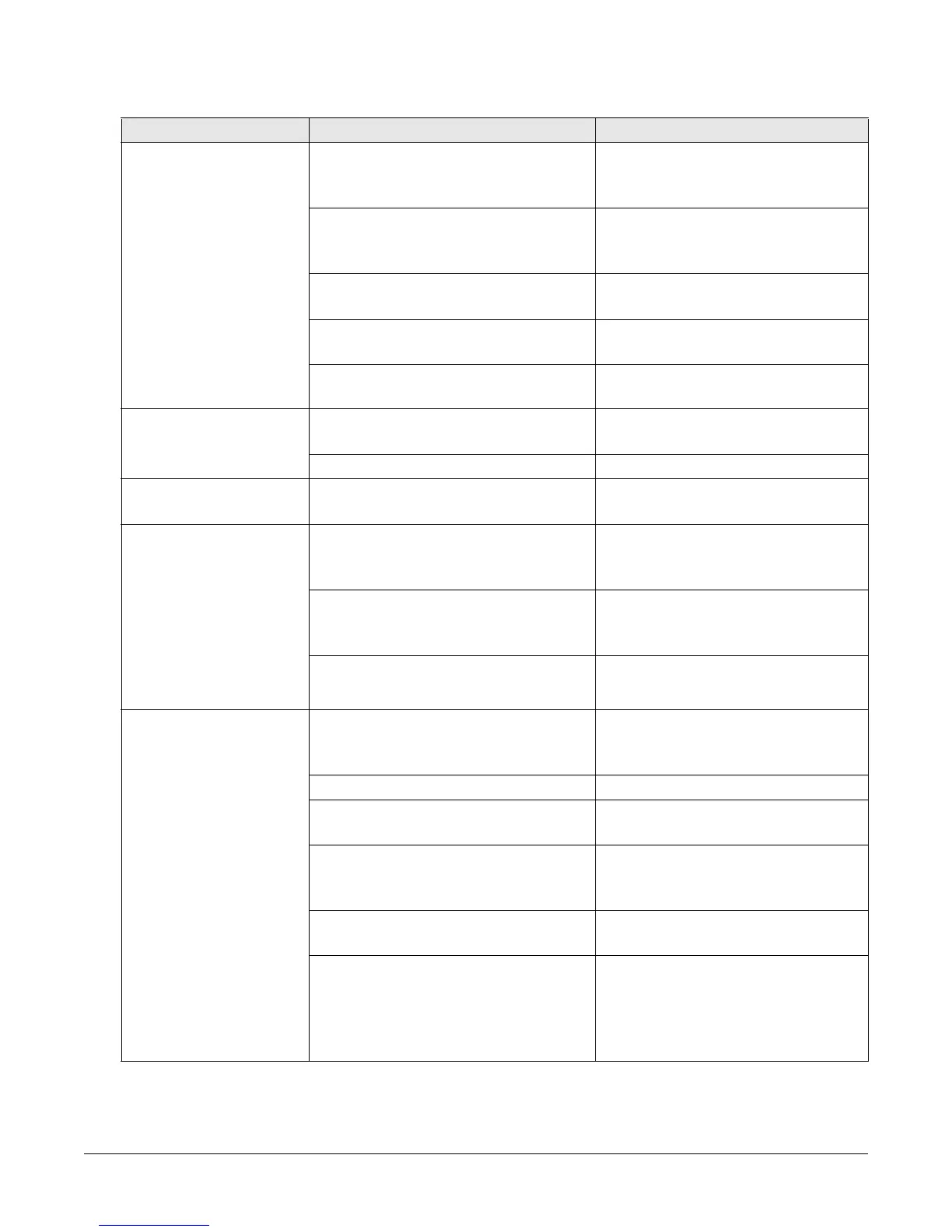
Problem Possible Cause Recovery Procedure
Not Printing Check if interface cable is properly
connected to the interface
connector.
Re-connect cable to interface.
The serial port cable pin
configuration is not a pin-to-pin
connection.
Replace the cable with pin to pin
connection.
The serial port setting is not
consistent between host and printer.
Reset the serial port setting.
The port specified in the Windows
driver is not correct.
Select the correct printer port in
the driver.
The Ethernet IP, subnet mask,
gateway is not configured properly.
Configure the IP, subnet mask and
gateway.
No print on the label Label or ribbon loaded not correctly. Follow the instructions in loading
the media or loading the ribbon.
Out of Ribbon. Load new ribbon.
Continuous feeding
labels
The printer setting may be wrong. Perform the initialization and
gap/black mark calibration.
Paper Jam Gap/black mark sensor sensitivity is
not set properly (sensor sensitivity is
not enough).
Calibrate the gap/black mark
sensor.
Label size is not set properly. Set label size exactly as installed
paper in the labeling software or
program.
Labels are stuck inside the printer
mechanism near the sensor area.
Remove the stuck label.
Poor Print Quality Top cover is not closed properly. Close the top cover completely
and make sure the right- and left-
side levers are latched properly.
Supply is loaded incorrectly. Reload the supply.
Ribbon and media are incompatible. Change the ribbon or label
combination.
Dust and/or adhesives are
accumulated on the print head.
Check if dust or adhesives are
accumulated on the print head.
Clean the print head.
Print density is not set properly. Adjust the print density and print
speed.
Print head test pattern is incorrect. Head element may be damaged.
Run printer self-test and check the
print head test pattern to see if
there are missing dots in the
pattern.


 To Next Page