BrightDrop Zevo 600 Owner Manual (GMNA-Localizing-U.S./Canada-
16569273) - 2023 - CRC - 11/3/22
70 Instruments and Controls
Range and charge time estimates fluctuate
depending on a number of factors such as
Charge Cord Level/Limit, battery
temperature, and outside air temperature.
To learn more about the vehicle battery see
Plug-In Charging 0 160.
The peek-in charging screen can be used to
monitor your vehicle’s charge status
remotely, see Instrument Cluster 0 55.
DC Fast Charging
The vehicle will immediately begin charging
when plugged into a DC fast charging
station. While DC Fast Charging, the vehicle
will bypass any schedule or departure time
selection. See Plug-In Charging 0 160.
Schedule
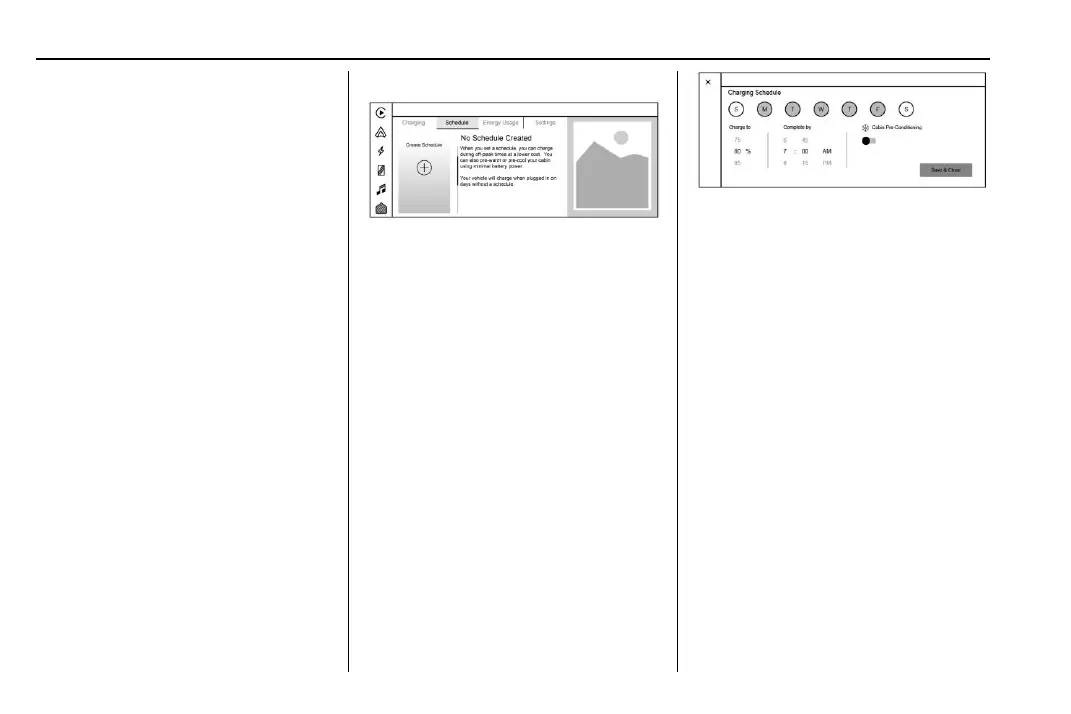
The Energy app’s Schedule feature allows a
custom charging plan to be set for each day
of the week. When the vehicle is plugged in
at the Home Charge Location, the Schedule
feature will automatically charge to the
desired Charge Level and precondition the
cabin by the time set in the Schedule. This
feature acts as a more customizable Charge
Later setting than the one on the Charging
screen.
Creating a Schedule
To create a Schedule, touch the Create
Schedule card on the left. If there is no
Home Charge Location set you will be
prompted to create one.
The Charging Schedule dialog displays:
.
Toggles for each day of the week.
.
Charge to: A value selector for setting the
desired Charge Level.
.
Complete by: A time selector for setting
the time the vehicle will reach the desired
Charge Level.
.
Cabin Preconditioning: Allows the vehicle
to heat or cool the cabin to the desired
temperature by using energy from the
charger.
.
An z allowing you to close the Charging
Schedule dialog.
.
Save & Close button: Applies any changes
made and exits the dialog.
Days can be assigned to the Schedule. Days
of the week represented by their first letter
in circular toggles. Touching each toggle
illuminates the graphic, confirming that day
is assigned that to the Schedule. Touching a
second time unassigns days from this
Schedule, dimming the toggle once again.
Select all days to adhere to the settings in
this Schedule. If there are multiple charge
schedules, days must be unassigned from
their current Schedule before they can be
assigned to a new one.
Once completed with the charging Schedule,
touch the Save & Close button to finish
creating the schedule.
On days that are not assigned a Schedule,
the vehicle will begin charging to 100% as
soon as it is plugged in, unless otherwise
specified on the Charging screen.


 To Next Page