10
3.2 Set Day/Time
To access and modify the day and time do the following:
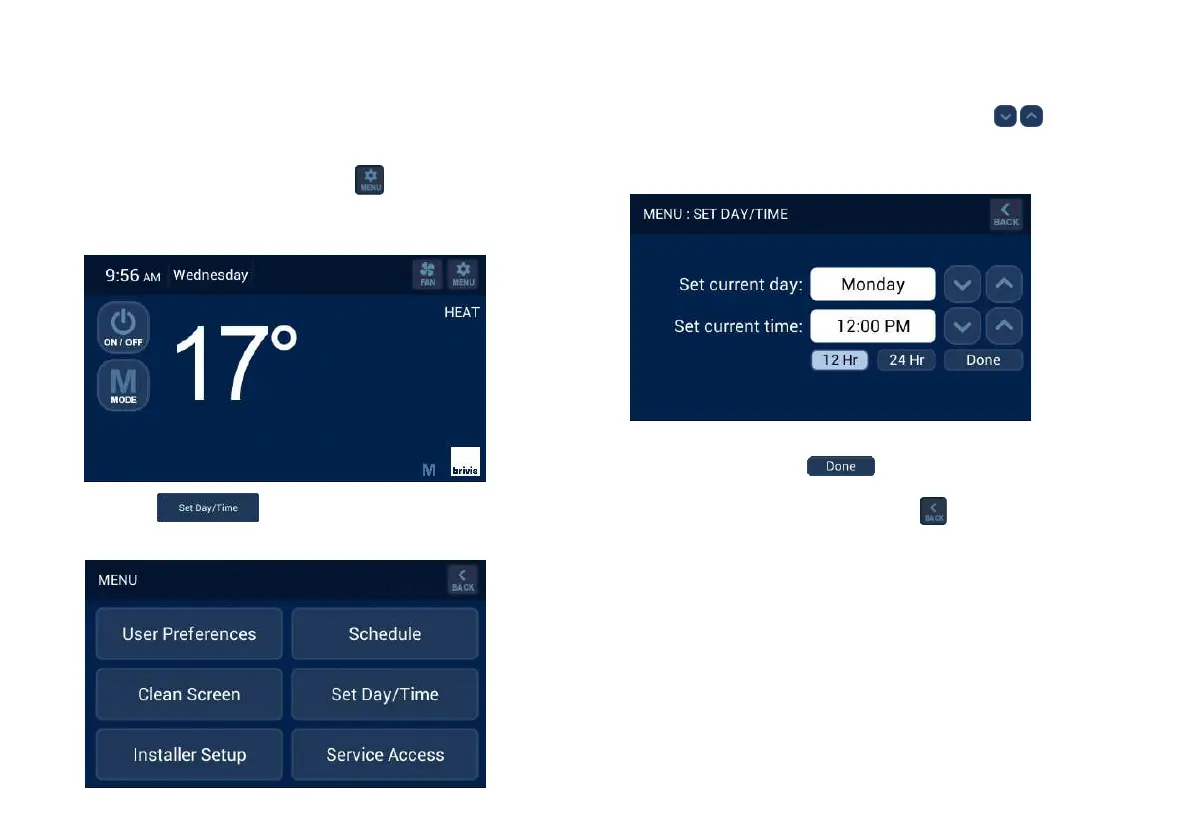
1. Identify the Master Controller; it has an ‘M’ in the bottom right hand
corner on the home screen. Press on the home screen, top
right hand corner, refer Diagram 12.
Diagram 12: Home screen in the OFF state
2. Press on the MENU screen, refer Diagram 13.
Diagram 13: MENU Screen
3. The MENU > SET DAY/TIME screen will appear, refer Diagram 14.
To modify either the day or the time press the buttons
adjacent to the time and day.
Diagram 14: Set the Day and Time
4. When complete press to save and you will return to the
MENU screen, refer Diagram 13 or the home screen, refer Diagram
12, when system is first started. Press to return to the home
screen, Diagram 12.
When the system is first powered up the ‘MENU > SET DAY/TIME’
screen will appear, refer Diagram 14. If more than one Brivis
Touch Controller is installed the ‘MENU > SET DAY/TIME’ screen
will appear for all. Set the correct day and time on the assigned
Brivis Touch Master Controller and then press ‘Done’. For all
other Brivis Touch Controllers press ‘Done’ as they will need to be
converted to a SLAVE Controllers.


 To Next Page