Administering the System
SETTING UP USERS IN THE PORTAL
Dashboard proles allows you as an
admin to set up what employees see and
have access to on their own Dashboards.
There are two standard proles that come
with your OceSuite® Phone account,
an Administrator prole and a Standard
User prole. You also have the ability to
customize your own user proles as well,
as you may have users who you want
to have access to certain settings and
permissions based o of their role and
level of authority. To create new user
proles, go to User Manager option
under the Settings tab and click Create
New User Prole. Here, you can name
the prole, for example, customer service
or sales and then select the widget
options that you would like them to have
access to, be sure to click Save. Only the
items selected will appear on their own
Dashboard.
RESETTING EXTENSION PINS
AND PORTAL PASSWORDS
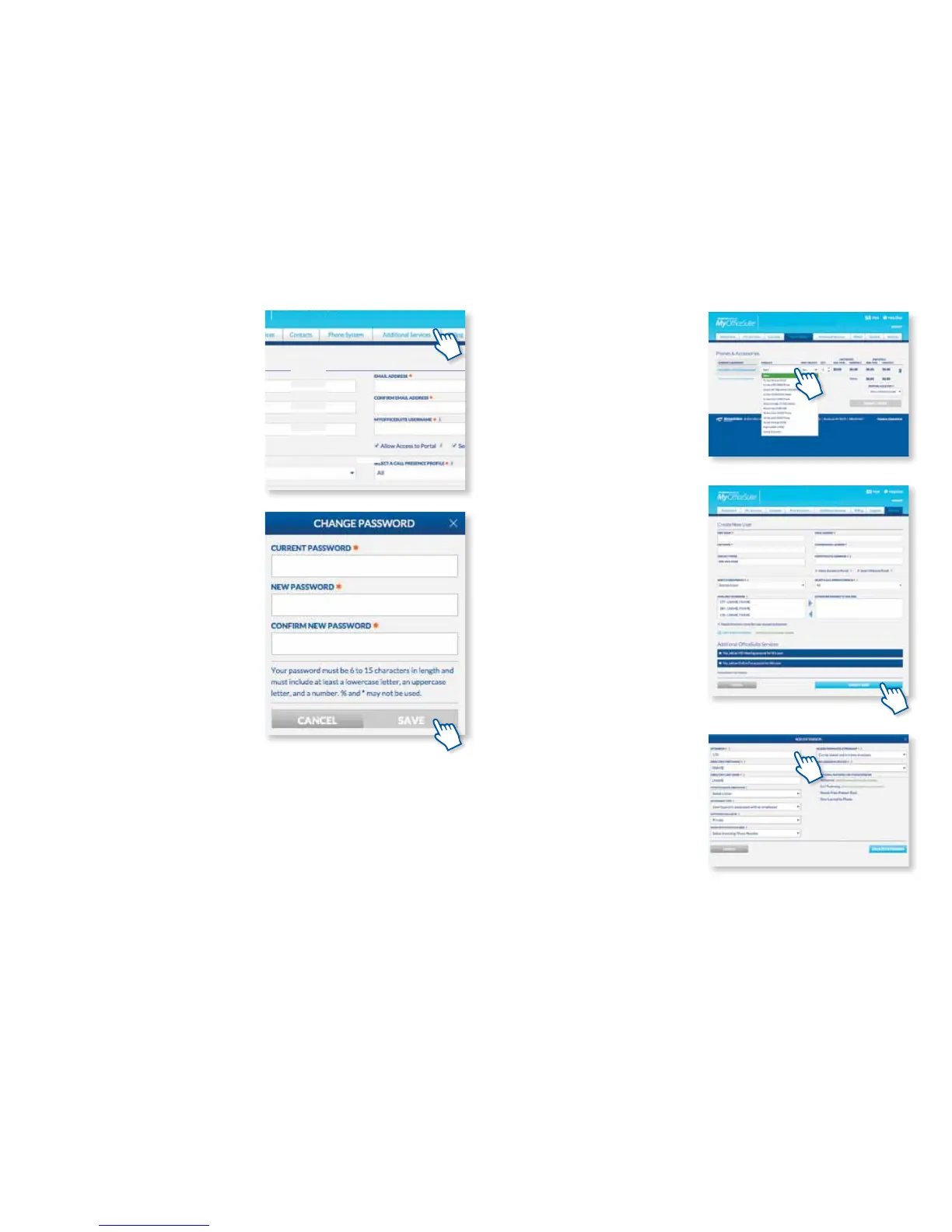
To reset a PIN or Password, simply go to
the Account Settings option under
Settings on the top navigation of
the Dashboard and click Reset PIN or
Change Portal Password.
ADDING A NEW EMPLOYEE
If you have a new team member and need
a new phone for them, you can quickly and
easily order a new phone for them right
through the MyOceSuite® portal. Just
click on the Phones and Accessories page
from the Phone System Tab on top and
select the model phone you would like to
add from the drop-down menu and add
the new phone to your account. You can
also contact us for assistance at anytime at
1-888-623-8647.
Adding a New User
To get started, you rst need to create
a new user through the MyOceSuite®
portal. To do this, go to the Settings tab
on top of the Dashboard and click on User
Manager in the drop-down menu. Then,
click on Create New User and enter their
information.
Creating a New Extension
Once you have created a new user for the
MyOceSuite® portal, you will then need
to create a new extension. To do this, go to
the Extension Manager under the Phone
System tab and click Add Extension. Enter
the new employee’s information and assign
them to the appropriate extension and
phone number from the drop-down menu
and click Save.
13



 To Next Page